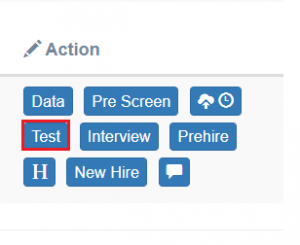
When a candidate passes the Prescreen stage successfully, only then, the Test action tab will be displayed under the Action column on the Candidate List page of ATS.
On the Test page, recruiters can schedule or reschedule the test, record the details of the Test Rounds and the Technical Scores achieved by the candidate for each skill, and provide the overall test result.
To access this page, select Recruiter Actions > Candidate List > Test tab.
Add Test page will be displayed as shown below:
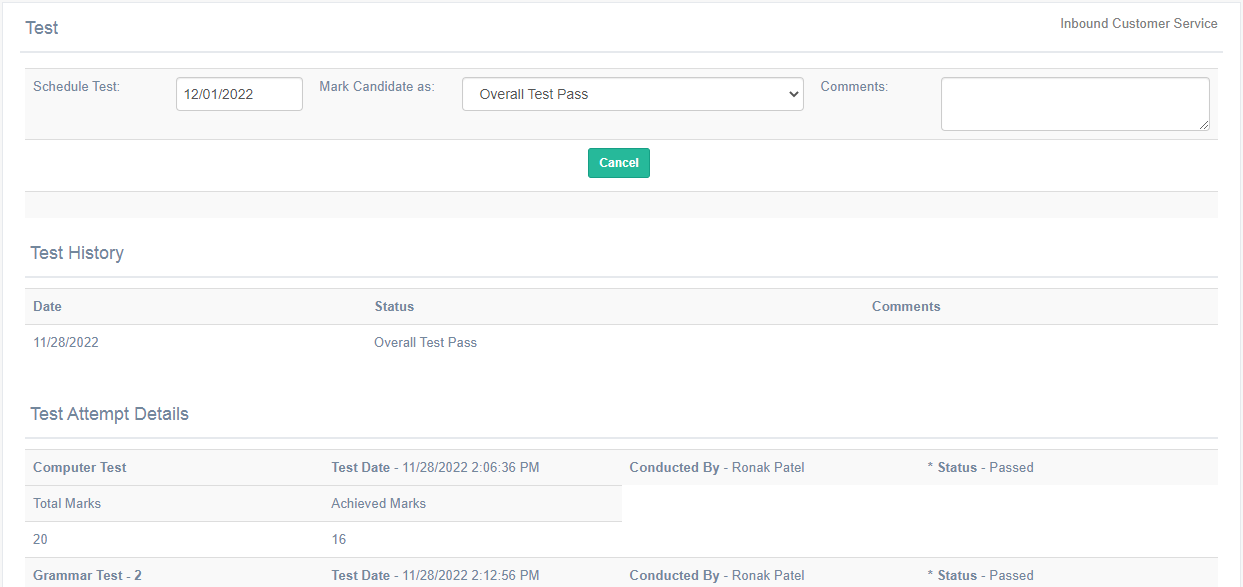
To add any test details of any candidate, configure the following details:
| Fields | Description |
| Scheduled Test | The date will display the current date by default. To change the date, select it from the date picker option. |
| Mark Candidate as | The recruiter can select the test outcome status from the Mark Candidate as a dropdown list.
Application status on the Candidate List page gets updated accordingly once submitted.
|
| Comments | Enter any comments or remarks if required. |
Once all the necessary details are configured, click on Submit button.

To discard the changes, click on the Cancel button.
Note: The recruiter will be able to edit the information on the Test page when the Mark Candidate as field is set as any option other than the Overall Test Passed and submitted.
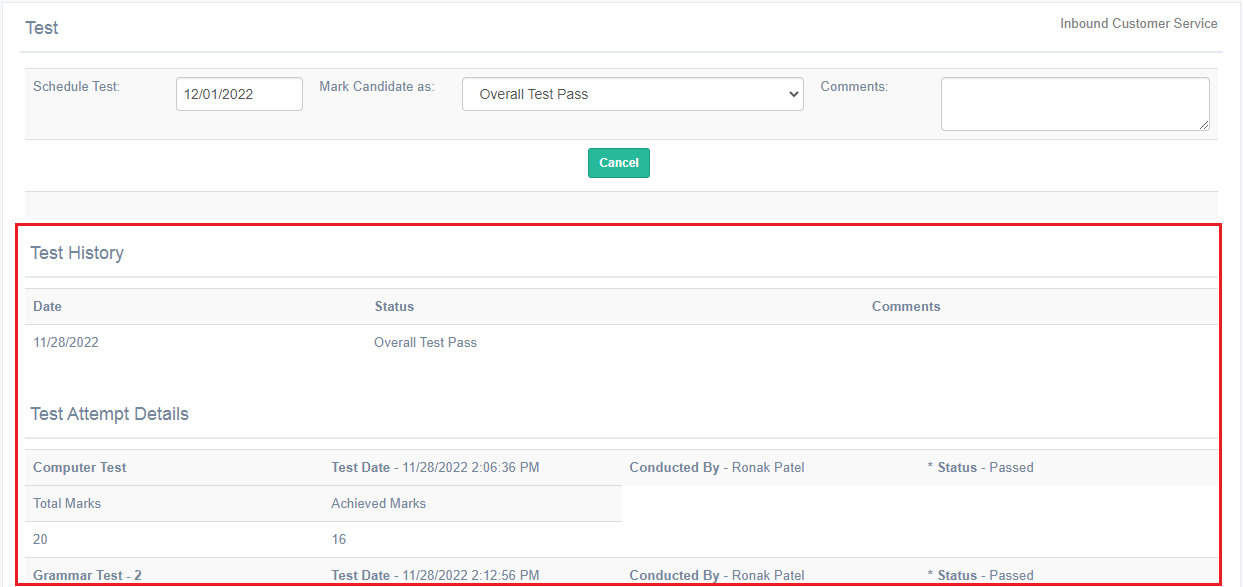
The Test History displays the test history maintained for the details provided for the same candidate on the same page and the Test Attempt Details displays the details of test scores scored by the candidate.
TEST PASSED
To pass a candidate, follow the steps mentioned below:
- Open the Test action tab.
- On Add Test page, select the option Overall Test Pass from the Mark Candidate as a dropdown list.
- Provide Comments if required.
- Click
The status of the candidate will be marked as Test Passed on the Candidate List page.

TEST FAILED
To fail a candidate, follow the steps mentioned below:
- Open the Test action tab.
- On Add Test page, select the option Overall Test Fail from the Mark Candidate as a dropdown list.
- Provide Comments if required.
- Click
The status of the candidate will be marked as Test Failed on the Candidate List page.
TEST SCHEDULED / RESCHEDULED
To reschedule a test round for a candidate, follow the steps mentioned below:
- Open the Test action tab.
- On Add Test page, select the option Test Scheduled/Rescheduled from the Mark Candidate as dropdown list.
- Provide Comments if required.
- Click
The status of the candidate will be marked as Test Scheduled/Rescheduled on the Candidate List page.
APPLICATION CLOSED
When a candidate is not interested anymore in the applied job while being in the Test stage, select the option Applicant not Interested from the Mark Candidate as dropdown list. Click Submit.
The status of the candidate will be marked as Application Closed on the Candidate List page.