Prescreen means to screen the candidates ahead of time before a more comprehensive recruiting process. The first step for the initiation of the recruitment process for any candidate starts with the Prescreen on ATS.
Only the authorized user can document the pre-screening discussion held with the applicant.
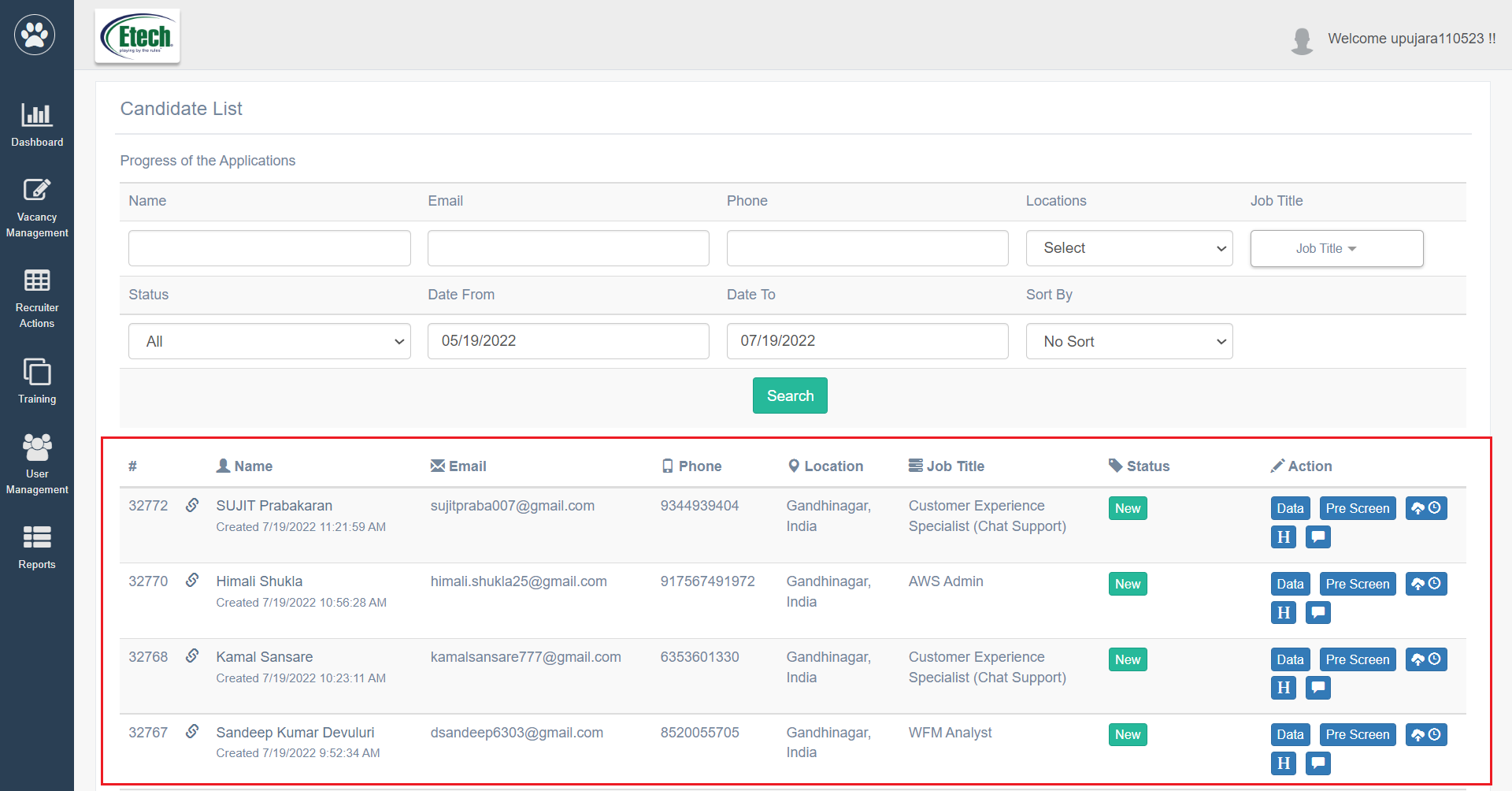
To access this tab, select Recruiter Action > Candidate List > Action Column.
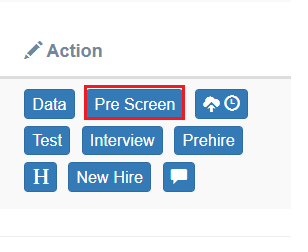
Click on the Prescreen tab.
The Prescreen page will be displayed as shown below:
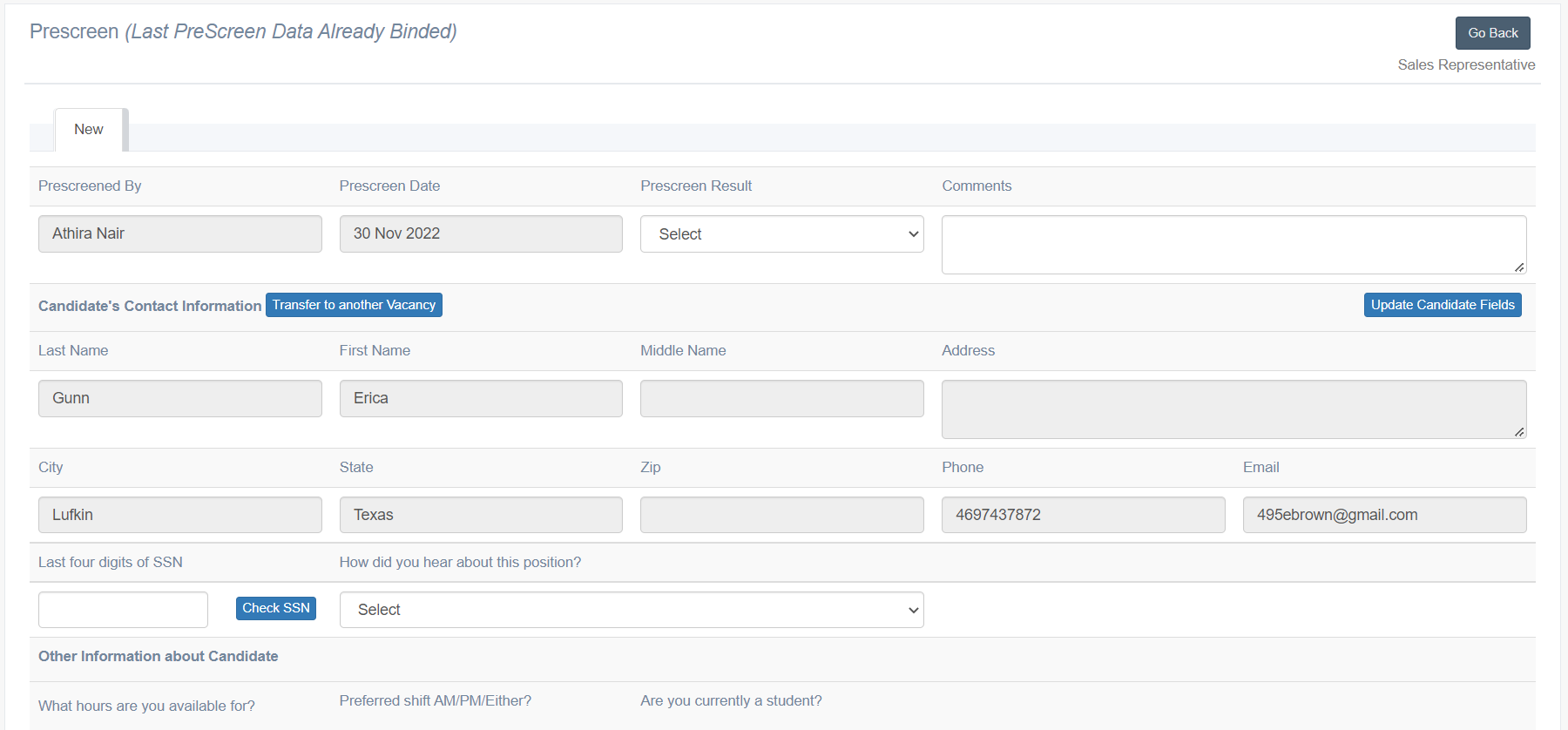
The following details will be displayed on this page:
| Fields | Description |
| Prescreened By |
Note: Prescreened By field is not editable for the recruiters. |
| Prescreen Date |
Note: This field is not editable. |
| Prescreen Result |
|
| Comments |
|
On this page, recruiters can provide the following information about the candidates:
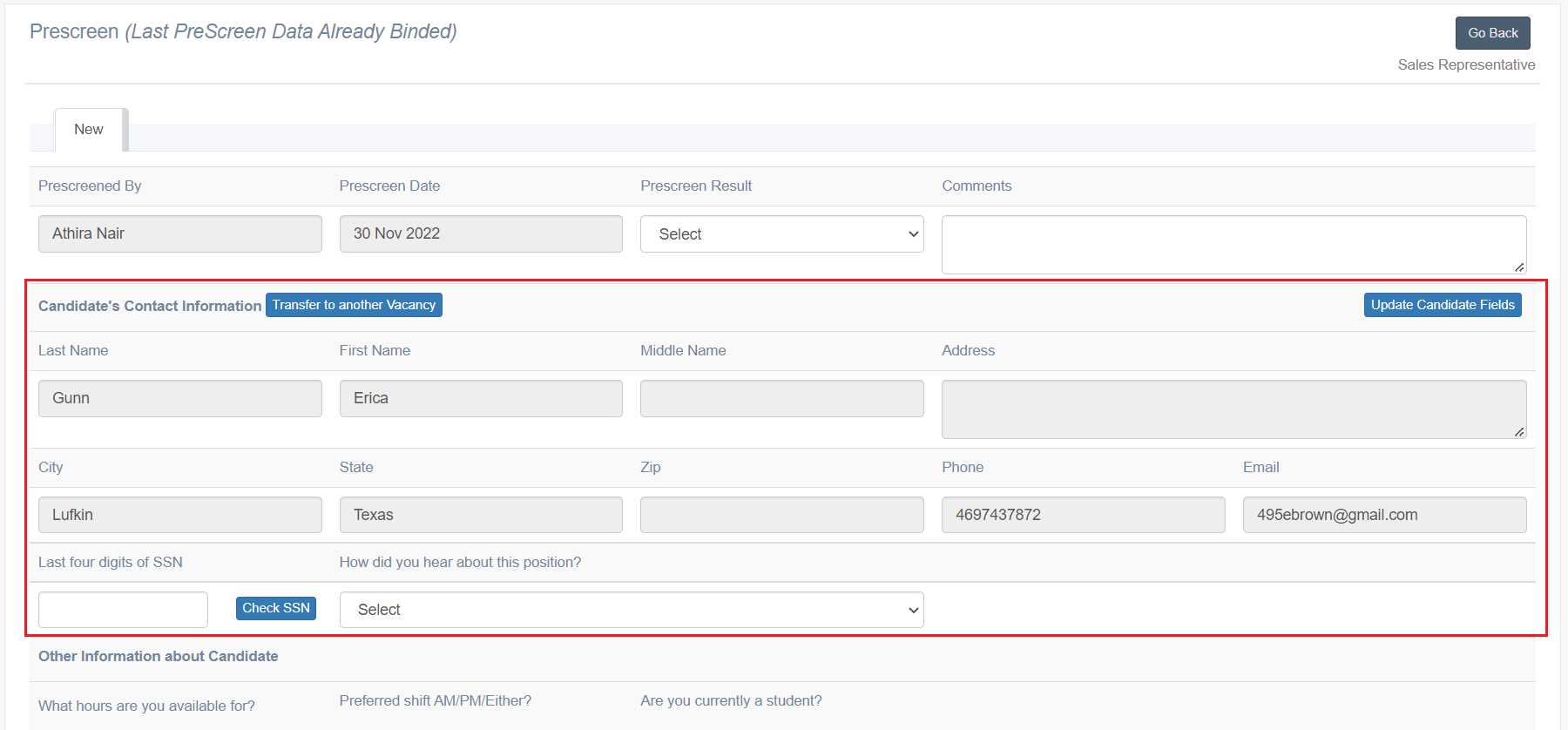
CANDIDATE’S CONTACT INFORMATION
Under this section, the recruiter can provide the following information:
If the recruiters feel that the candidate would be the best fit for another open vacancy based on their experience or interest, then the recruiters can transfer the candidate’s application from the old vacancy to another vacany, by clicking on the Transfer to another Vacancy button.
Transfer to another Vacancy window will be displayed as shown below:
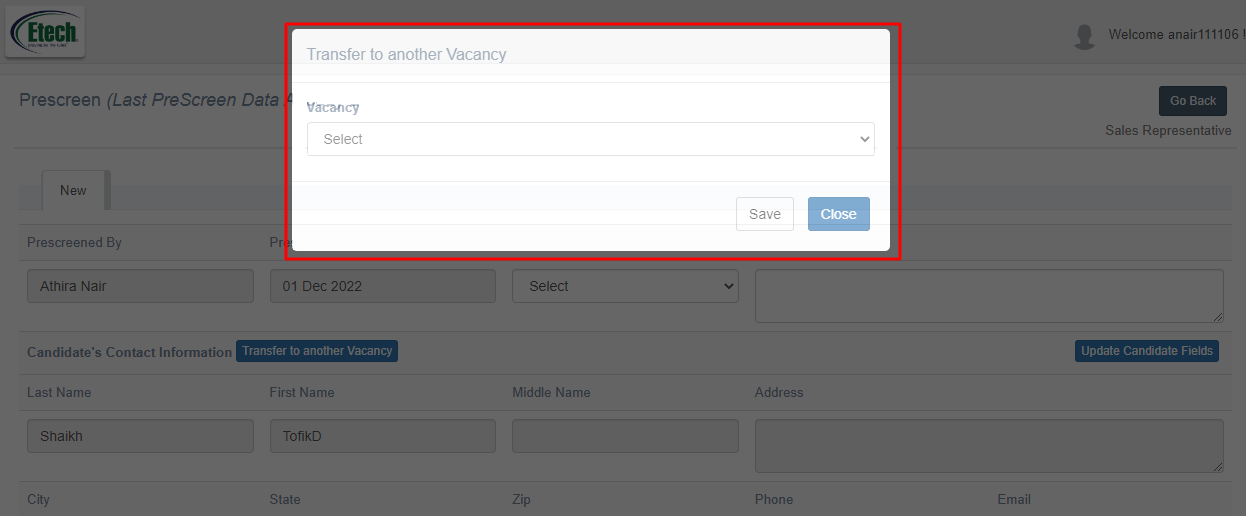
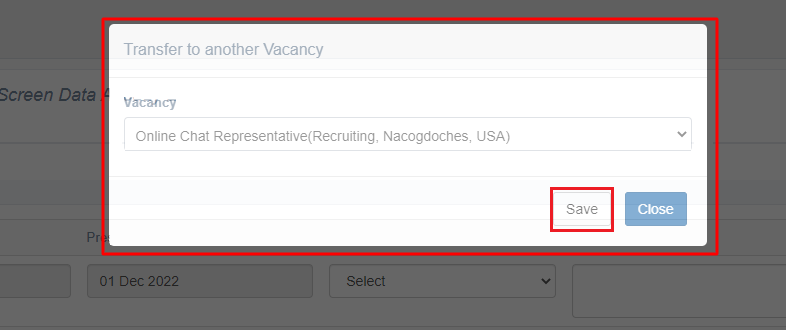
Select the other open vacancies from the dropdown list. Then click on the Save button.
When the recruiter opens the Prescreen page, all the details of the candidate displayed under Candidate’s Contact Information section will be in read-only mode.
To update any of the candidate’s information, click on the Update Candidate Details button.
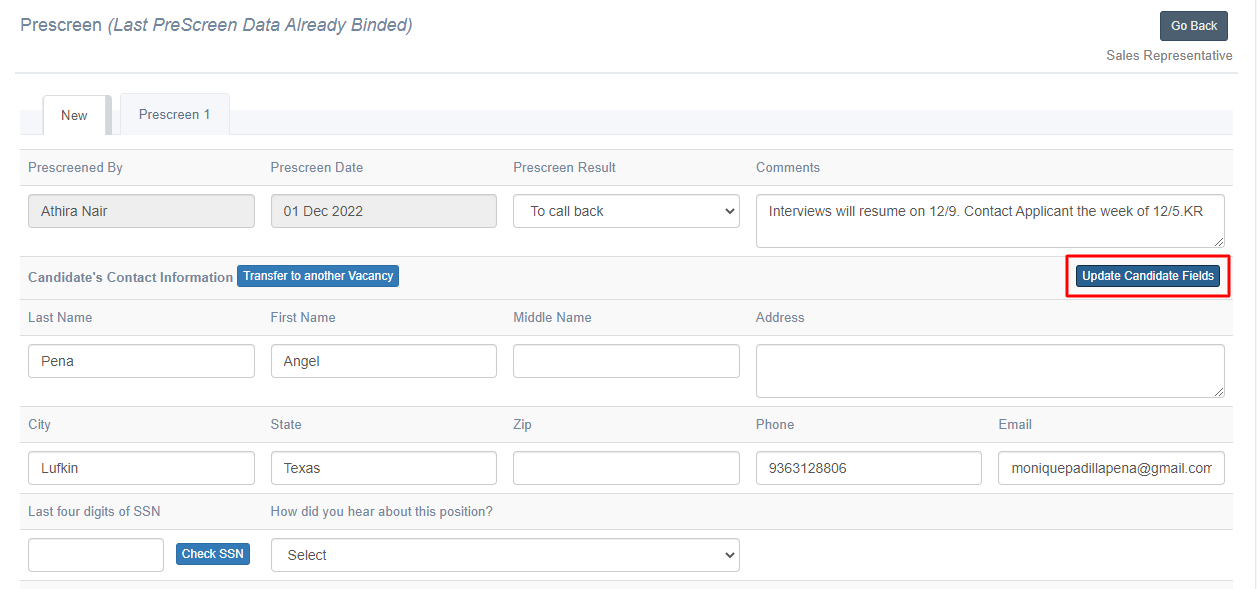
Once this button is clicked, all the candidate details’ read-only fields displayed under Candidate’s Contact Information section, will turn into editable fields and the recruiters can update the required information.
All the candidate’s details will be displayed for the new job position.
| Fields | Description |
| Last Name | Enter the candidate’s last name. |
| First Name | Enter the candidate’s first name. |
| Middle Name | Enter the candidate’s middle name. |
| Address | Enter the candidate’s permanent address. |
| City | Enter the name of the city. |
| State | Enter the name of the state. |
| ZIP | Enter the zip code/ postal code. |
| Phone | Enter the candidate’s phone number. |
| Enter the candidate’s email address. | |
| Last four digits of SSN | Enter the last digits of the Social Security Number of the candidate in the text box. Click on the Check SSN button to check if the candidate was an ex-employee of the organization. |
| How did you hear about this position? | Select the options from where the candidates came to know about the job vacancy for example, Job Boards, Social Media, etc. |
OTHER INFORMATION ABOUT CANDIDATE
Under this section, the recruiter can provide more information about the candidate.
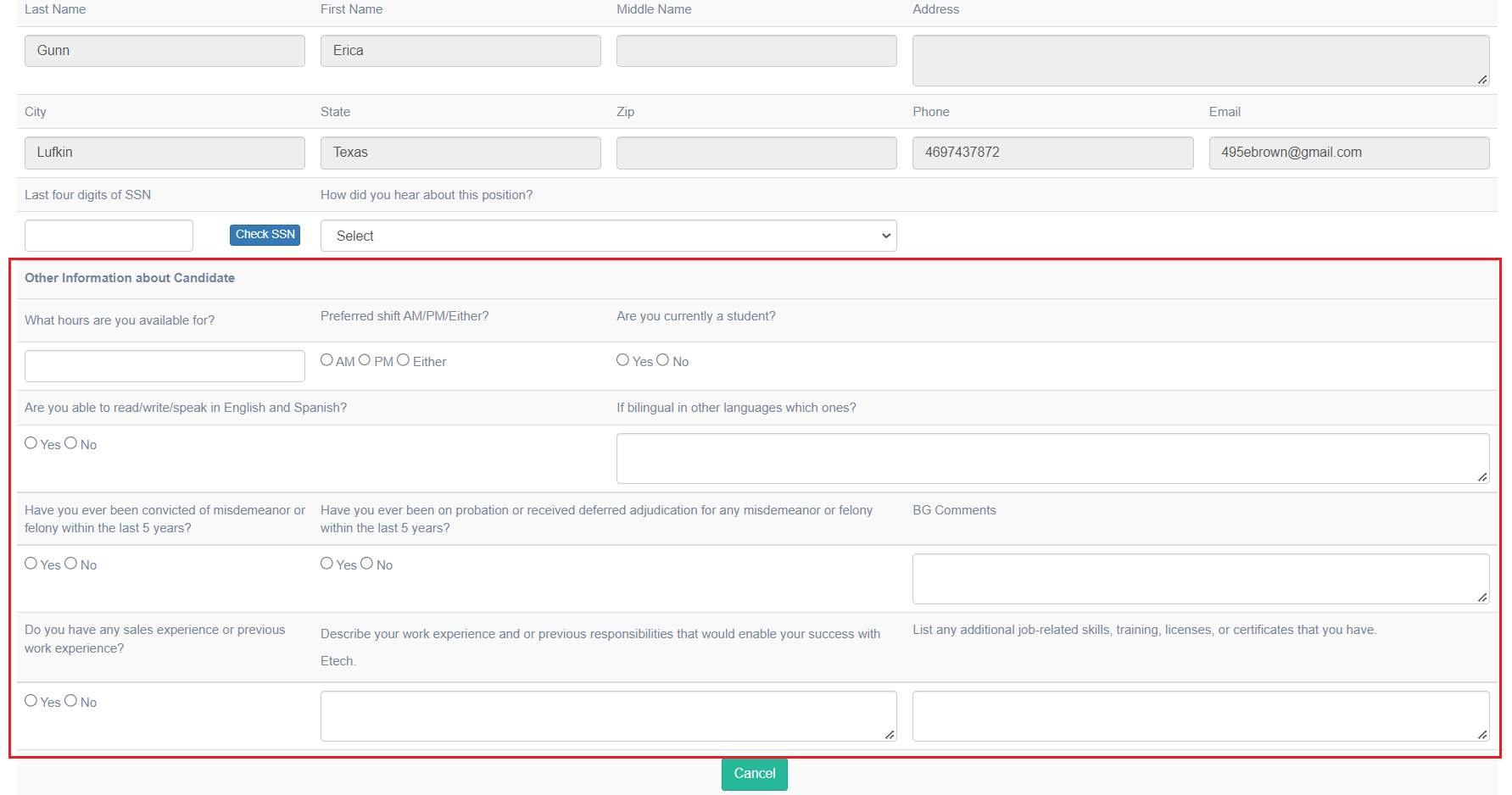
Configure the fields displayed under this section:
| Fields | Description |
| What hours are you available for? | Enter the candidate’s preferrable time of contact. |
| Preferred shift AM/PM/Either | Select the candidate’s preferred work shift time radio button – AM, PM and Either. |
| Are you currently a student? | If the candidate is currently a student, then select the Yes option.
Else, select No. |
| Are you able to read/write/speak/ in English and Spanish? | If the candidate is able to read/write/speak/ in English and Spanish, then select the Yes option.
Else, select No. |
| If bilingual in other languages which ones? | Enter the languages known by the candidates other than English in the text box. |
| Have you ever been convicted of misdemeanor or felony within the last 5 years? | If the candidate has ever been convicted of misdemeanor or felony within the last 5 years, then select the Yes option.
Else, select No. |
| Have you ever been on probation or received deferred adjudication for any misdemeanor or felony within the last 5 years? | If the candidate has ever been on probation or received deferred adjudication for any misdemeanor or felony within the last 5 years, then select the Yes option.
Else, select No. |
| BG Comments | Enter the BG comments in the text area. |
| Do you have any sales experience or previous work experience? | If the candidate has any sales experience or previous work experience, then select the Yes option.
Else, select No. |
| Describe your work experience and or previous responsibilities that would enable your success with Etech. | Enter the work experience in the text area provided. |
| List any additional job-related skills, training, licenses, or certificates that you have. | Enter additional skills in the text area provided. |
Once all the necessary information is provided on this page, the recruiter can click on Submit button. Else, click on Cancel.
Once submitted, on the Candidate List page, the status of that candidate’s application will be changed according to the option selected in Prescreen Result dropdown.
Until the candidate’s data is moved to AID, which is an employee database of Etech for US centers, all the details displayed under the sections on the Prescreen Page like – Candidate’s Contact Information, and Other Information about Candidate – can be editable on the Prescreen form.
PRESCREEN IN PROGRESS
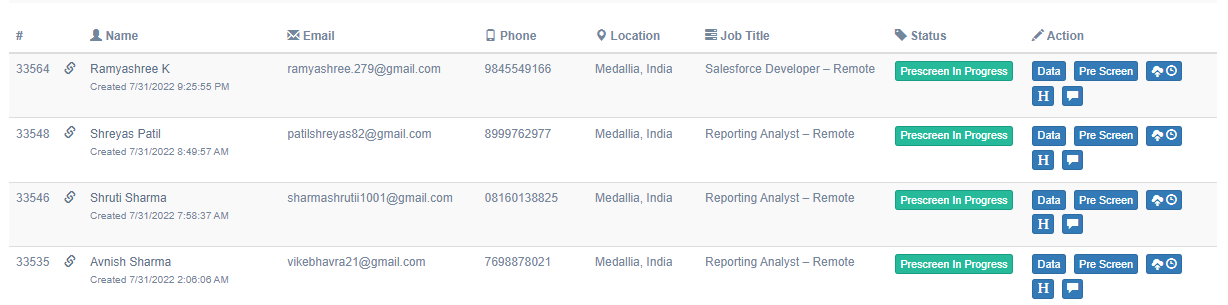
If the recruiter selects the Prescreen Result as the following, then on the Candidate List page, the status will display Prescreen in Progress:
- Attempted – No Answer
- Attempted – Invalid/Wrong Number
- To call back
- Email Sent
- Shortlisted for Prescreen
PRESCREEN ON HOLD
If the recruiters select the Prescreen Result as Prescreen on hold, then on the Candidate List page, the status will display Prescreen on hold.
PRESCREEN REJECTED
If the recruiter selects the Prescreen Result as the following, then on the Candidate List page, the status will display Prescreen Rejected.
- Duplicate Application
- Prescreen Failed
- New Application Required
- Lacking Documentation
- NER
- Basic Call Rejection
PRESCREEN ACCEPTED
If the recruiter selects the Prescreen Result as Prescreen passed, then on the Candidate List page, the status will display Prescreen Passed.

APPLICATION CLOSED
By selecting the Prescreen Result on Recruiter Actions > Candidate List > Prescreen form as the following:
- Applicant not interested
- Hiring – on hold
- Close
The status of the candidate will be marked as Application Closed on the Candidate List page.