When a candidate passes the Interview stage successfully, only then, the Prehire action tab will be displayed under the Action column on the Candidate List page of ATS.
The recruiter can provide the information about the job offered to the candidates who passed the test and interview stage successfully. Details like Employment Information like type, job title, department etc., General Information like probation period, scheduled training date, Offer Details like the package offered, status of the offer, bonus, etc.
To access this page, select the Recruiter Actions > Candidate List > Prehire tab.
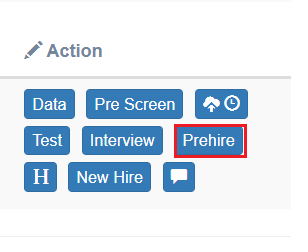
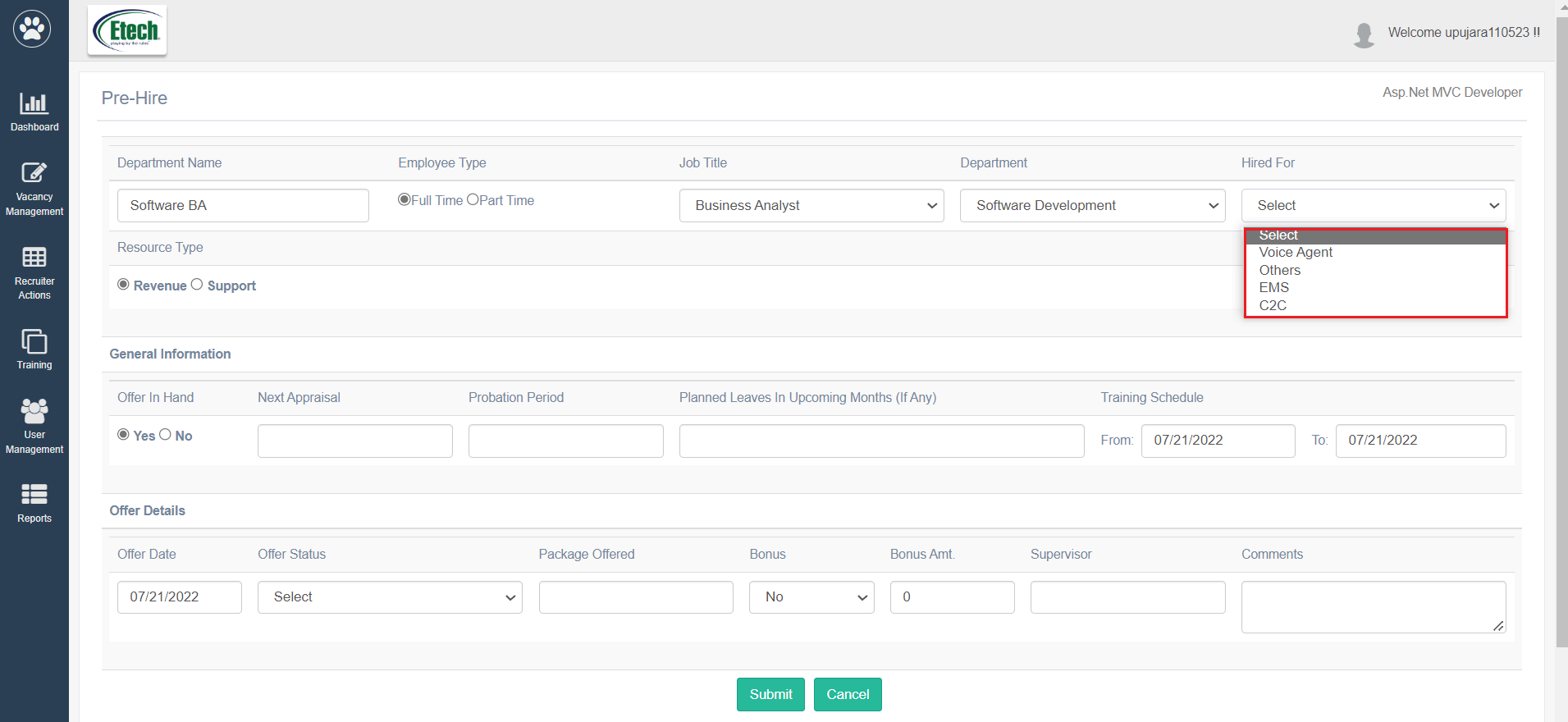
The Prehire page will be displayed as shown below:
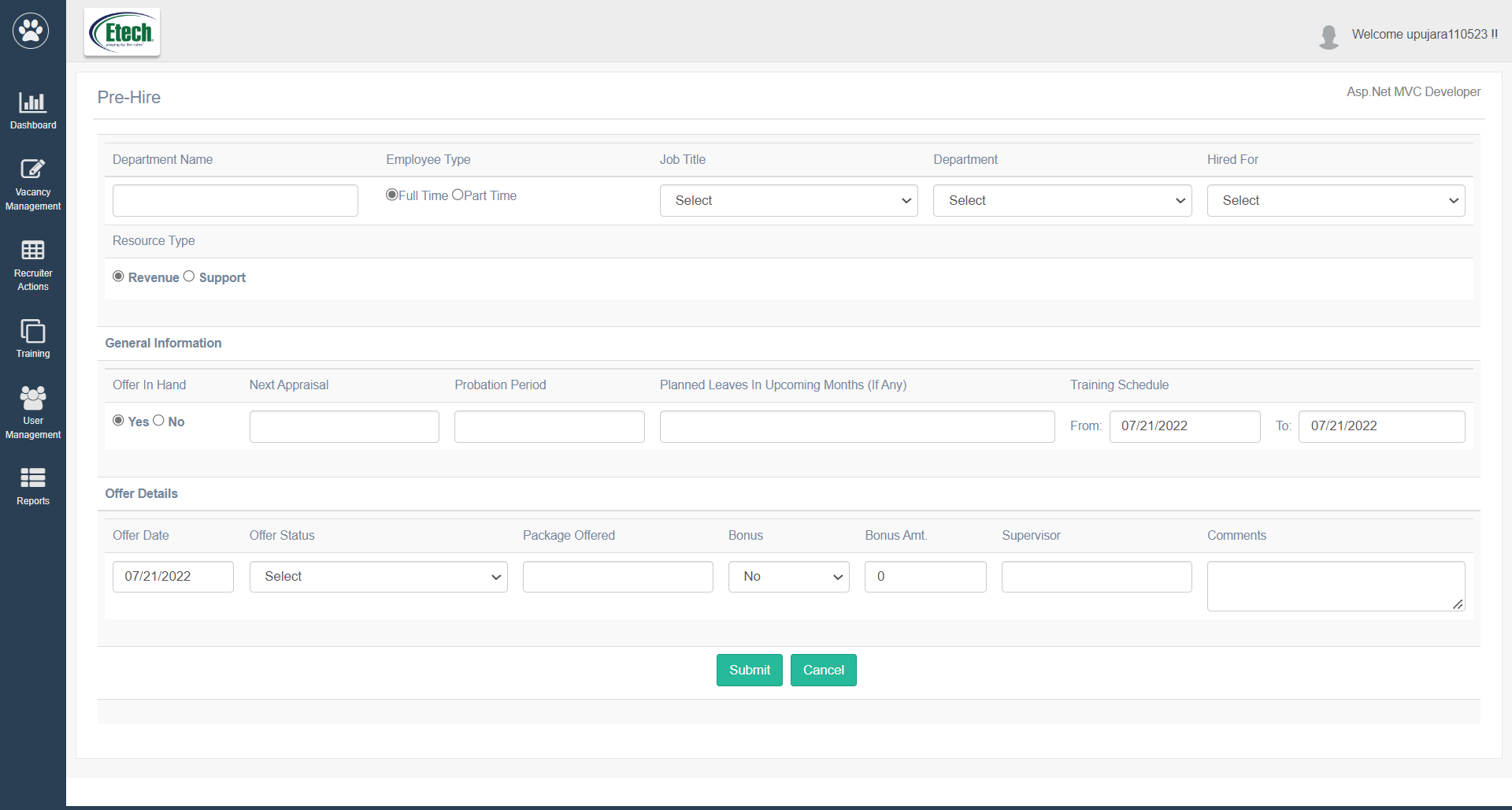
To add the prehire details of any candidate, configure the following details:
| Fields | Description |
| Department Name | Enter the name of the department or team in which the candidate is offered to work. |
| Employee Type | Select the employee type from the options – Full Time or Part Time. |
| Job Title | Select the name of the position offered to the candidate to work.
|
| Department | Select the name of the main department the candidate is offered to work in.
|
| Hired For | Select the required option – Voice Agent, Others, EMS or C2C.
|
| Resource Type | Select the required resource type as – Revenue or Support. |
| General Information | |
| Offer In Hand | Select the appropriate option – Yes or No.
If the candidate is holding any offers from other organizations in hand, then select Yes. Else, select No. |
| Next Appraisal | Enter the date or day or year, in which the candidate will be eligible for the appraisal. |
| Probation Period | Enter the probation period for a candidate to serve. |
| Planned Leaves In Upcoming Months (If Any) | Enter the number of leaves the candidate is planning to take in the first few months after he/she joins. |
| Training Schedule | Select the date of the training class scheduled for the candidate |
| Offer Details | |
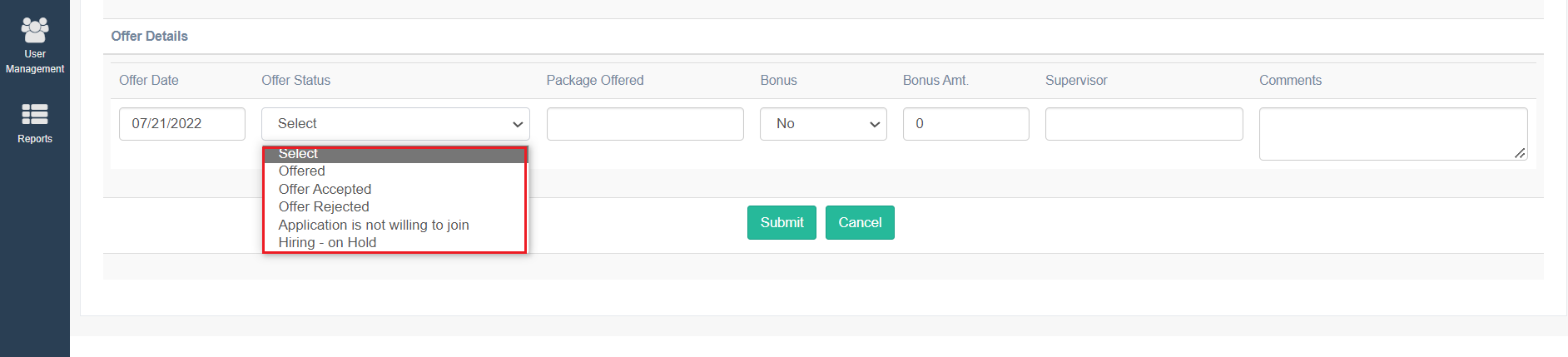
| Offer Date | Select the date of when the offer was made to the candidate. |
| Offer Status | Select the status of the offer once it is shared with the candidate.
|
| Package Offered | Enter the annual package offered to the candidate. |
| Bonus | Select Yes or No, if the candidate is offered to receive the bonus. |
| Bonus Amt. | If the bonus has been offered, i.e., if the Bonus is selected as Yes, then enter the bonus amount offered to the candidate. |
| Supervisor | Enter the name of the supervisor under whom the candidate would be working. |
| Comments | Enter any comments or remarks. |
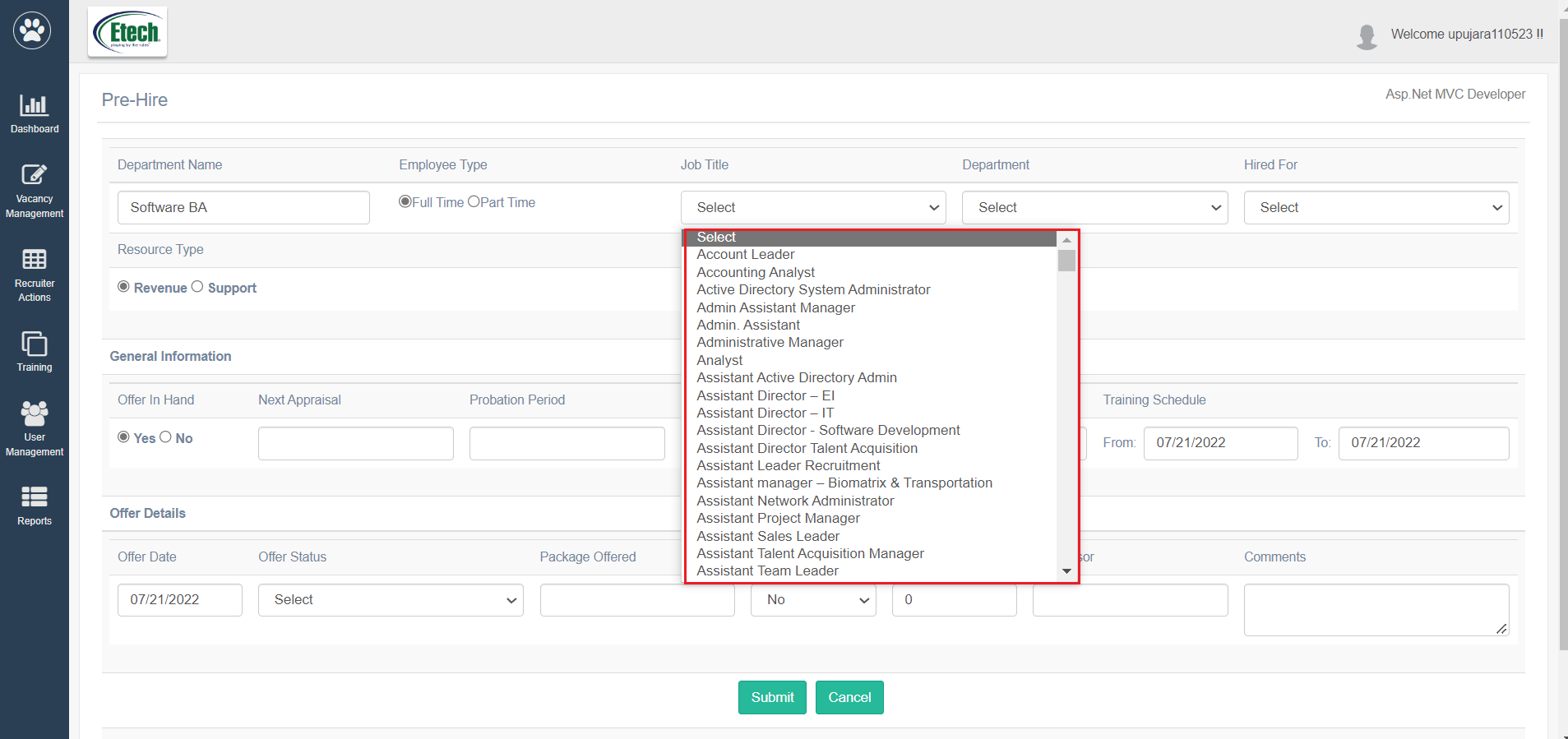
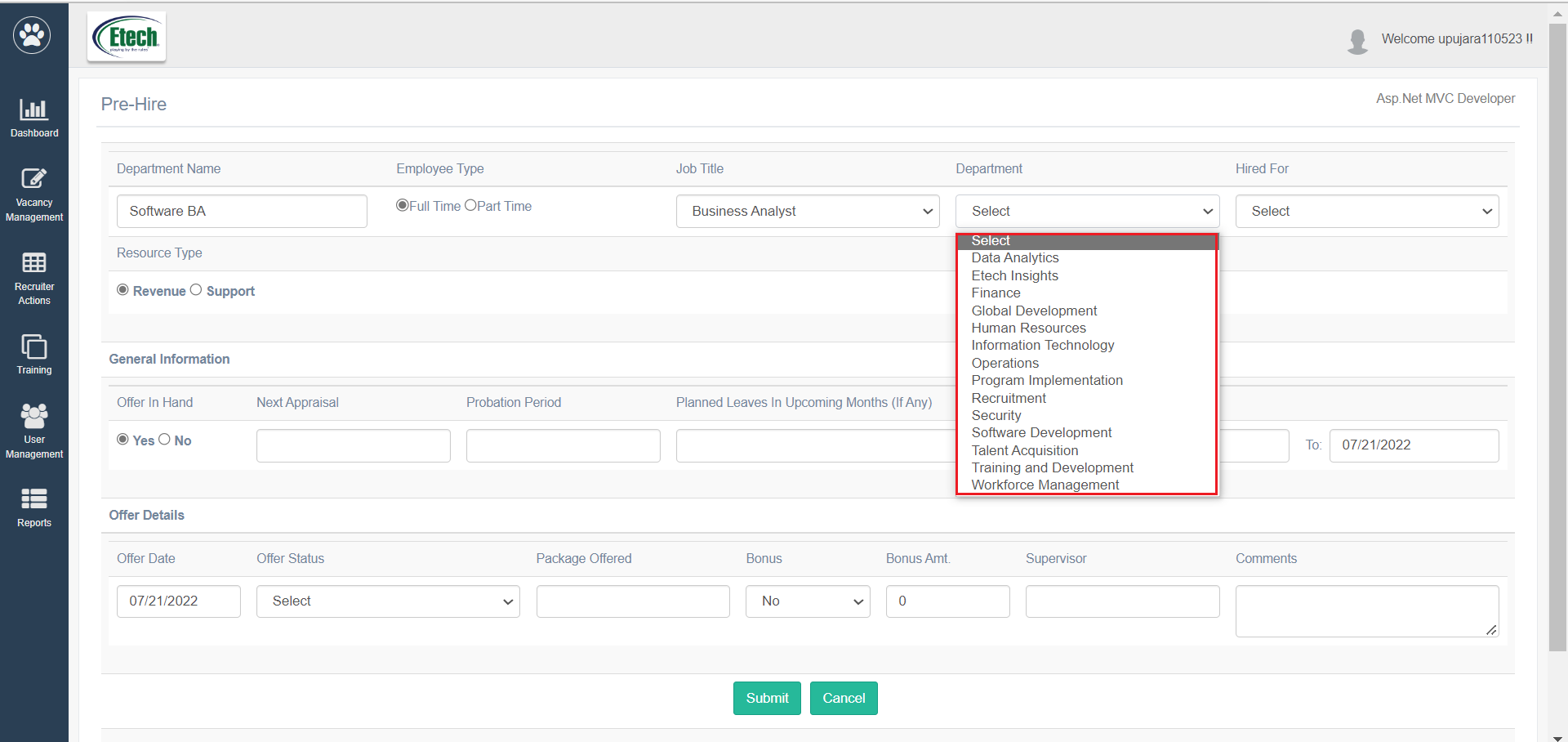
Once all the necessary details are configured, click on Submit button.
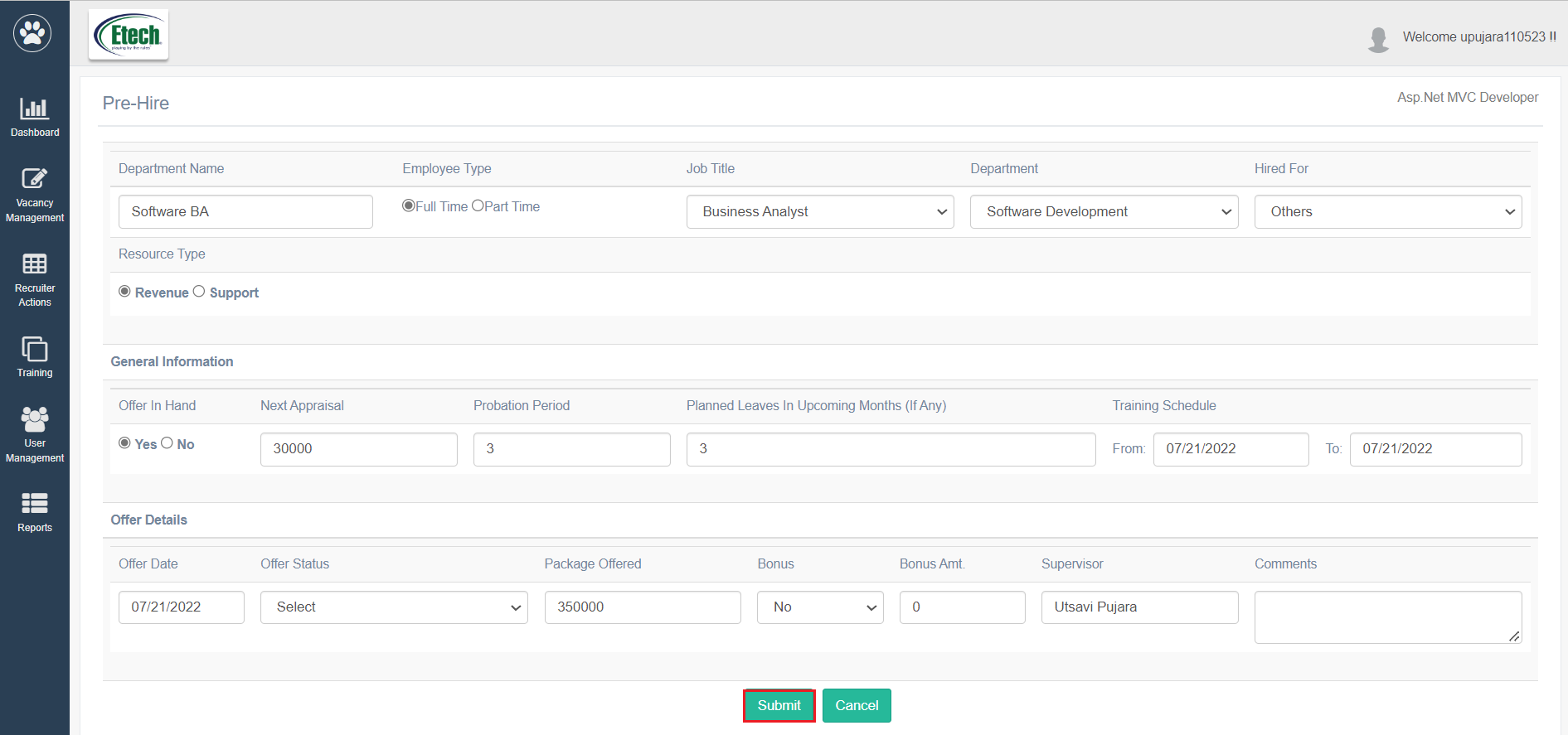
To discard the changes, click on the Cancel button.
When a candidate accepts the job offered and the recruiter selects the Offer Status as Offer Accepted, then, the Drug Test, Background Verification, and Paper Verification Details section will be displayed on the Prehire page.
Note: The recruiter will not be able to edit the job profile details, General Information, and Offer Details on the Pre-Hire page when the Offer Status field under Offer Details is set as Offer Accepted and the form is submitted.
DRUG TEST DETAILS
The recruiter can provide details on the drug test which is scheduled or already conducted for the candidates who have accepted the offer.
To provide the drug test details, configure the following details:
| Fields | Description |
| Schedule Drug Test Date | Select the drug test scheduled date from the date picker option. |
| Actual Drug Test Date | Select the actual drug test conducted date from the date picker option. |
| Who Administered | Enter the name of the member who administered the drug test process being conducted for the candidate. |
| Drug Test Outcome | Select the outcome or the result of the drug test of the candidate. |
| Comments | Enter the comments or remarks if required. |
If all the required details for the drug test are configured, then click Submit.
The status of the candidate will be marked as Pre-hire in progress on the Candidate List page.
Note: If the Background Verification Outcome and Paper Verification status are also marked as passed or cleared then, the status of the candidate will be marked as Hire Pending on the Candidate List page.
BACKGROUND VERIFICATION DETAILS
The recruiter can provide details on the background verification which is scheduled or already conducted for the candidates who have accepted the offer.
To provide the background verification details, configure the following details:
| Fields | Description |
| Is background verification schedule? | Select this checkbox if the background verification of the candidate is scheduled. |
| Background verification outcome | Select the outcome or the result of the background verification of the candidate. |
| Comments | Enter the comments or remarks if required. |
If all the required details for the background verification are configured, then click Submit.
The status of the candidate will be marked as Pre-hire in progress on the Candidate List page.
Note: If the Drug Test Outcome and Paper Verification status are also marked as passed or cleared then, the status of the candidate will be marked as Hire Pending on the Candidate List page.
PAPER VERIFICATION DETAILS
The recruiter can provide details on the paper verification which is scheduled or already conducted for the candidates who have accepted the offer.
To provide the paper verification details, configure the following details:
| Fields | Description |
| Is Paper verification schedule? | Select this checkbox if the paper verification of the candidate is scheduled. |
| Who Administered | Enter the name of the member who administered the paper verification process being conducted for the candidate. |
| Date of paper verification | Select the paper verification scheduled date from the date picker option. |
| Unique Number / PAN | Enter the Unique Number or the PAN Card number of the candidate. |
| Paper verification status | Select the outcome or the result of the paper verification of the candidate. |
| Comments | Enter the comments or remarks if required. |
If all the required details for the paper verification are configured, then click Submit.
The status of the candidate will be marked as Pre-hire in progress on the Candidate List page.
Note: If the Drug Test Outcome and Background Verification outcome are also marked as passed or cleared then, the status of the candidate will be marked as Hire Pending on the Candidate List page.
When the Drug Test, Background Verification, and Paper Verification outcomes/statuses are marked as passed or cleared and the form is submitted, the recruiter will not be able to edit any information on the Prehire page.