The recruiters can change the password by themselves or authorized users can also change or reset the password.
By Self
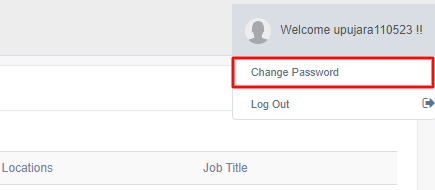
Click Change Password in the upper right corner, within the username.
The Change Password page will be displayed as shown below:

Enter the Current Password, New Password, and Re-Enter New Password.
Once configured, click on the Change Password button. Then log in with the new password.
In this way, the recruiters can change the password by themselves.
By an Authorized User
The recruiters authorized for the User Management tab can change the password or any other details.
Select User Management > User List and the following page will be displayed.
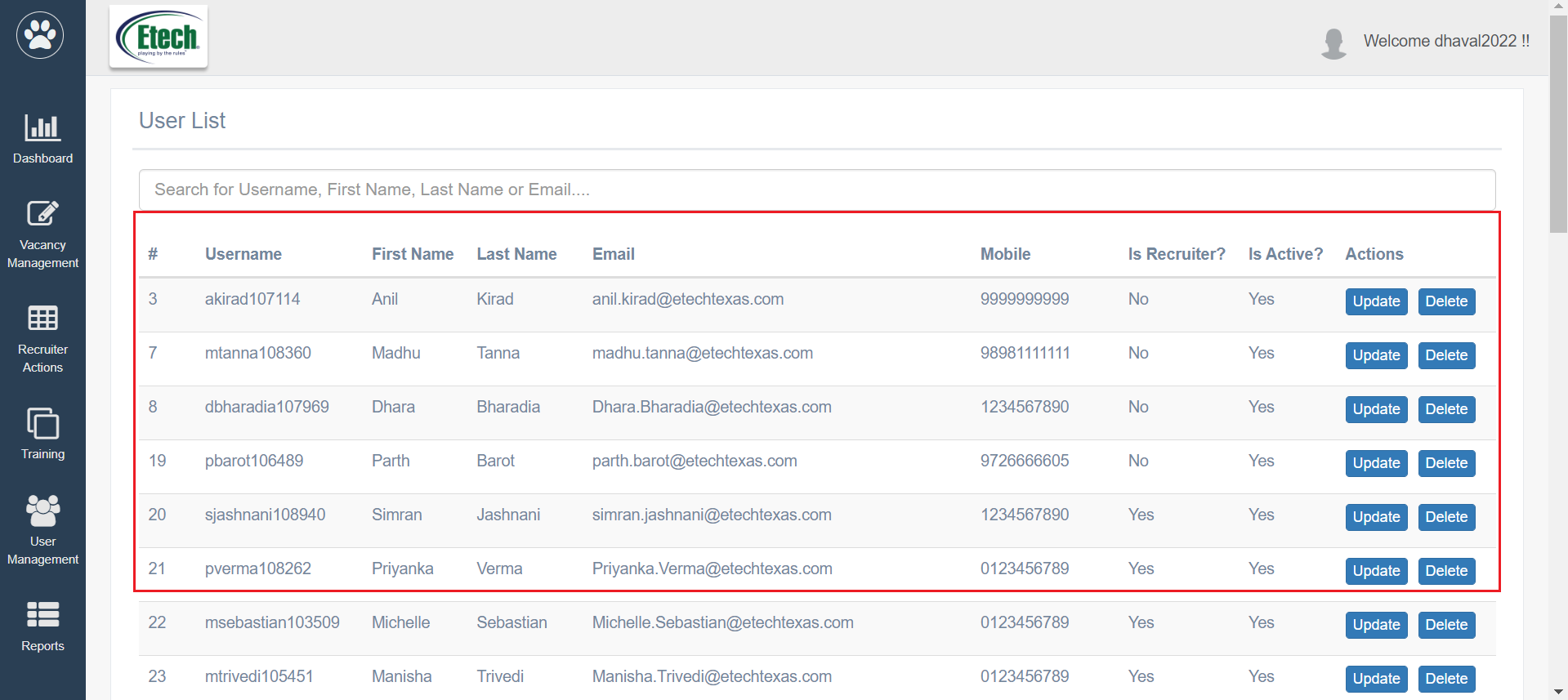
Search the required user and click on Update from the Actions column.
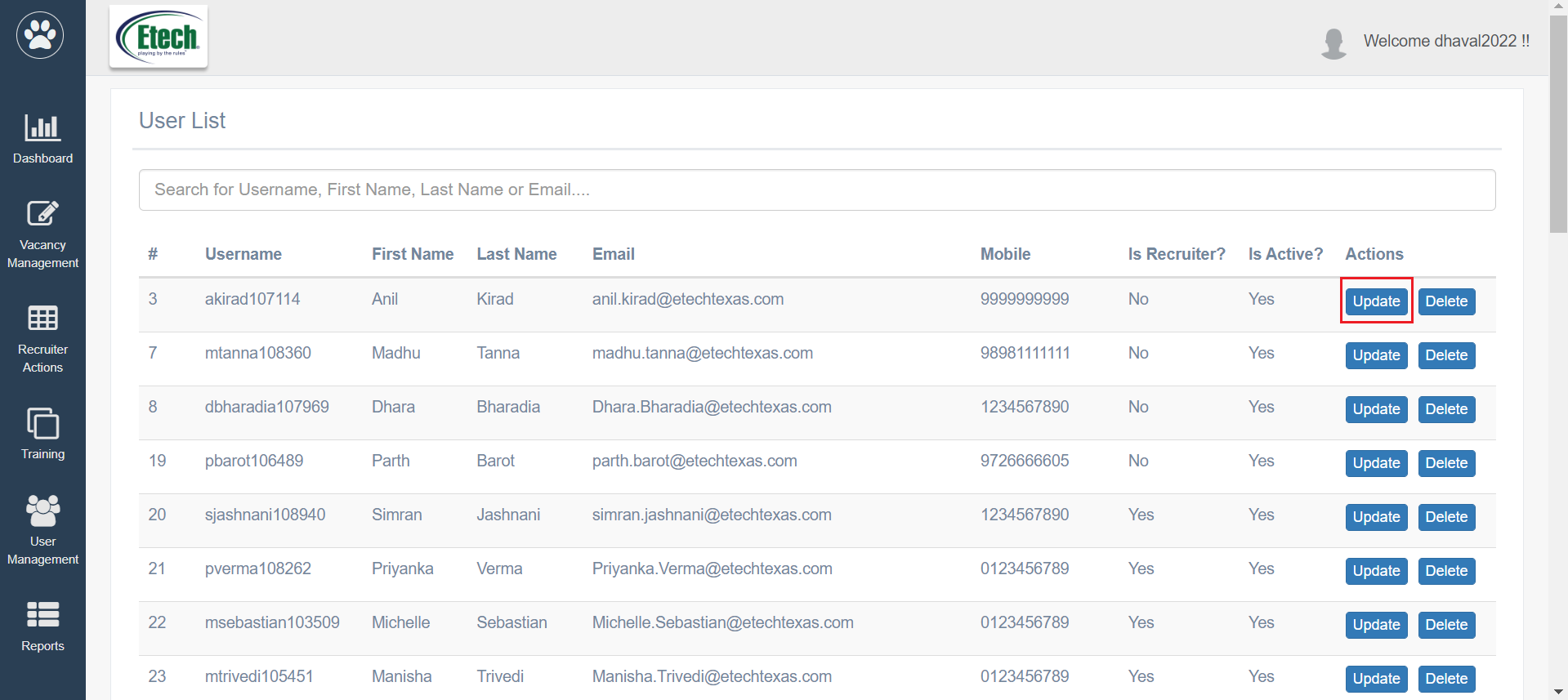
The user will be redirected to the User Management page as shown below:
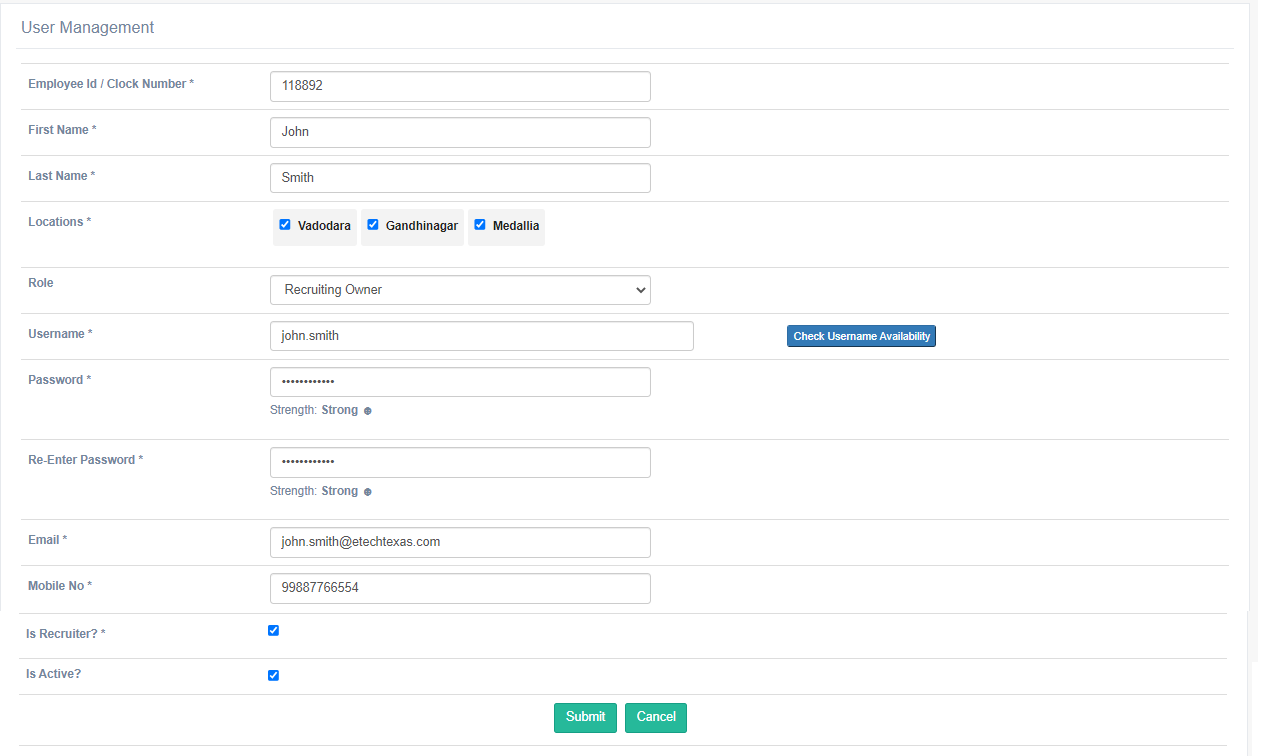
On this page, all details related to this user will be displayed. Update the password and click Submit.
In this way, the authorized recruiter can change the password.
Note: The recruiters who do not have access to the User Management page can also ask their supervisors to update the password for them. Once the supervisors update the password, they can share the new password with the recruiter.
To know more, refer to User Management.
Logout
For the recruiters to log out from the ATS platform, click on the username displayed in the upper right corner of the page, then click on Logout.
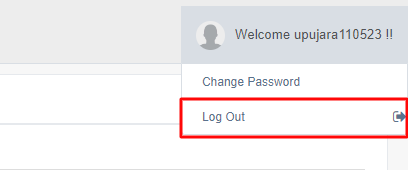
The recruiter will be redirected to the Login screen.