Authorized users of ATS with specific access rights can create or delete other users or can make changes to the existing user’s profile.
To access this functionality, select User Management from the side panel.
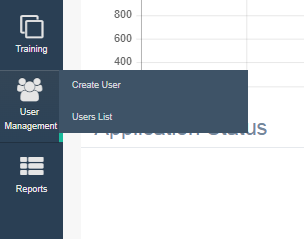
There are 2 tabs available:
- Create User
- User List
CREATE USER
To create a new user, select User Management > Create User.
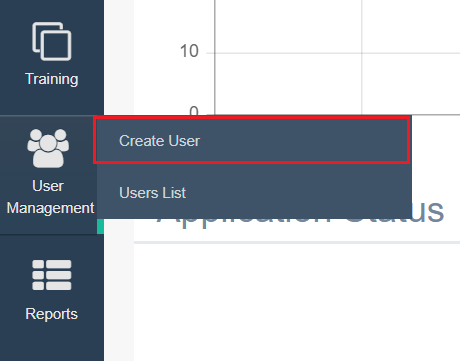
The Create User page appears as shown below:
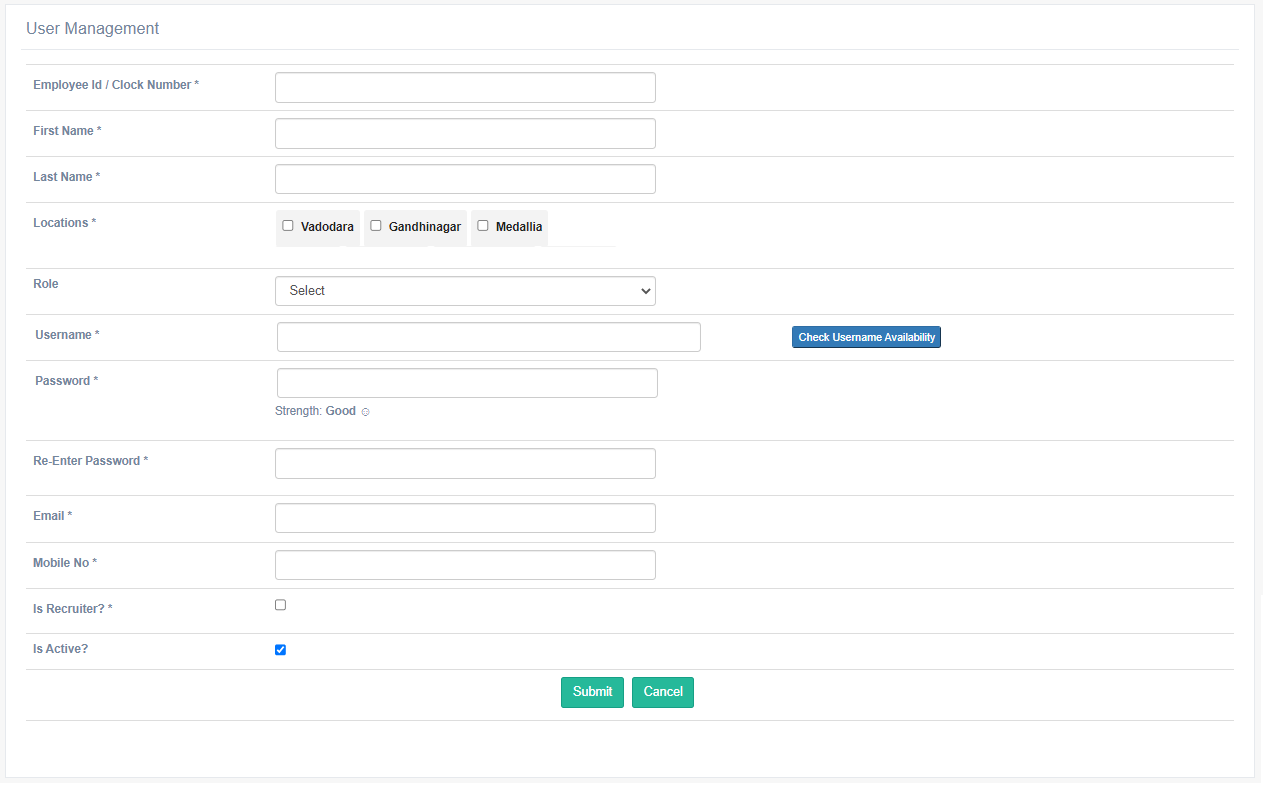
NOTE: The fields having * symbol depicts that they are mandatory fields for a user to configure.
Configure the following details to create a new user:
- Employee Id / Clock Number*: Enter the employee Id/ clock number of a user.
- First Name*: Enter the first name of the user.
- Last Name*: Enter the last name of the user.
- Locations*: Select the checkbox of the locations to provide access to all the applications received for the job vacancies of the selected locations to the new user.
Note: A new employment coordinator created for a particular location can only view and process the applications related to that particular location only.
- Role: Select the role to be assigned to the user – HR Administrator, HR Manager, Recruiting Owner, Recruiting Manager, and Employment Coordinator.
- Username*: Set the username for this user.
- Password*: Set the password for this user.
The system displays the strength of the password while the recruiter is entering the password.
If the password is Strong, it will display as shown below:

If the password in Good, it will display as shown below:

If the password is Bad, it will display as shown below:

If the password is Worst, it will display as shown below:

- Re-Enter Password*: Enter the set password again.
- Email*: Enter the email Id of the user.
- Mobile No*: Enter the mobile number of the user.
- Is Recruiter? *: Select the checkbox if the user is a recruiter.
- Is Active? Select the checkbox to activate the user.
Once all the details are configured, click on the Submit button.
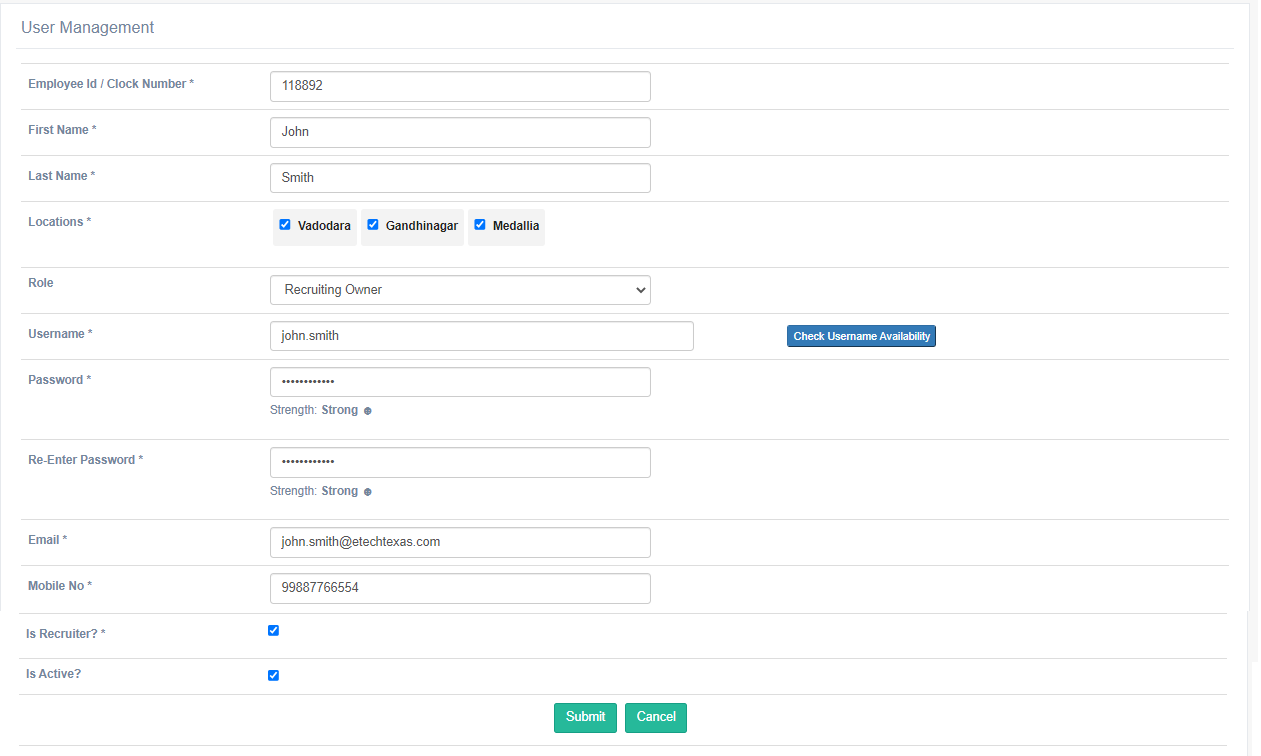
Click Cancel to discard the changes.
Once the user details are submitted, they will be displayed on the Users List page.
USERS LIST
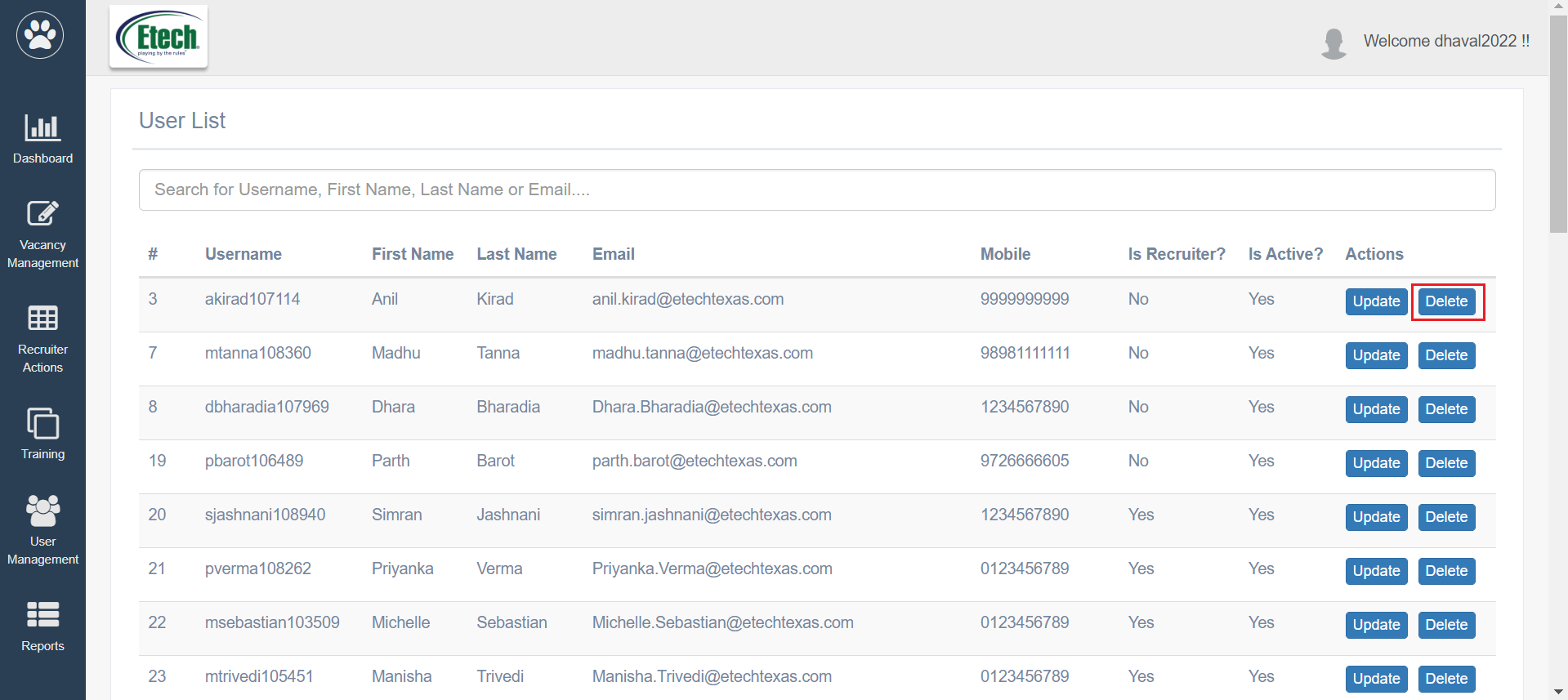
To view the list of all the users of ATS, select User Management > User List and the following page will be displayed.
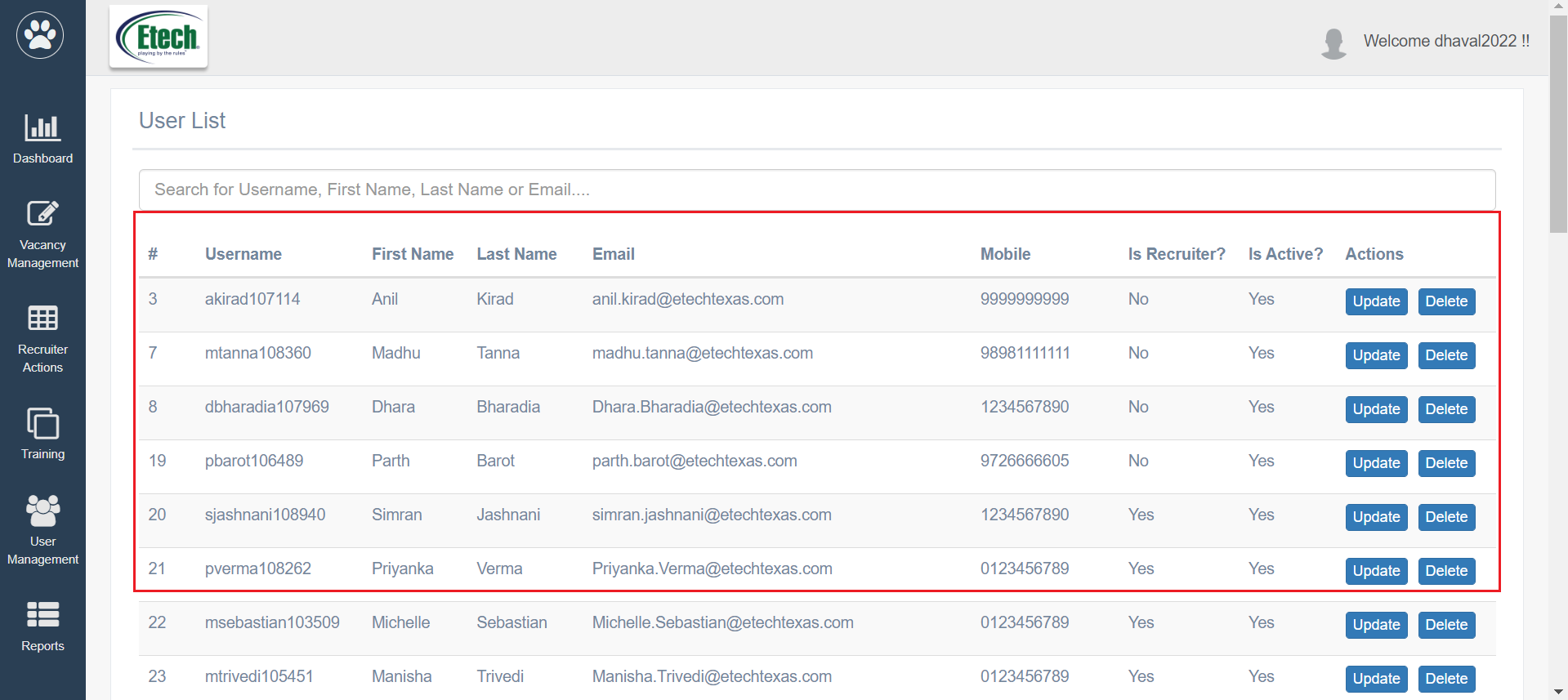
On this page, details like – User Name, First Name, Last Name, Email, Mobile, Is Recruiter? and Is Active? details will be displayed.
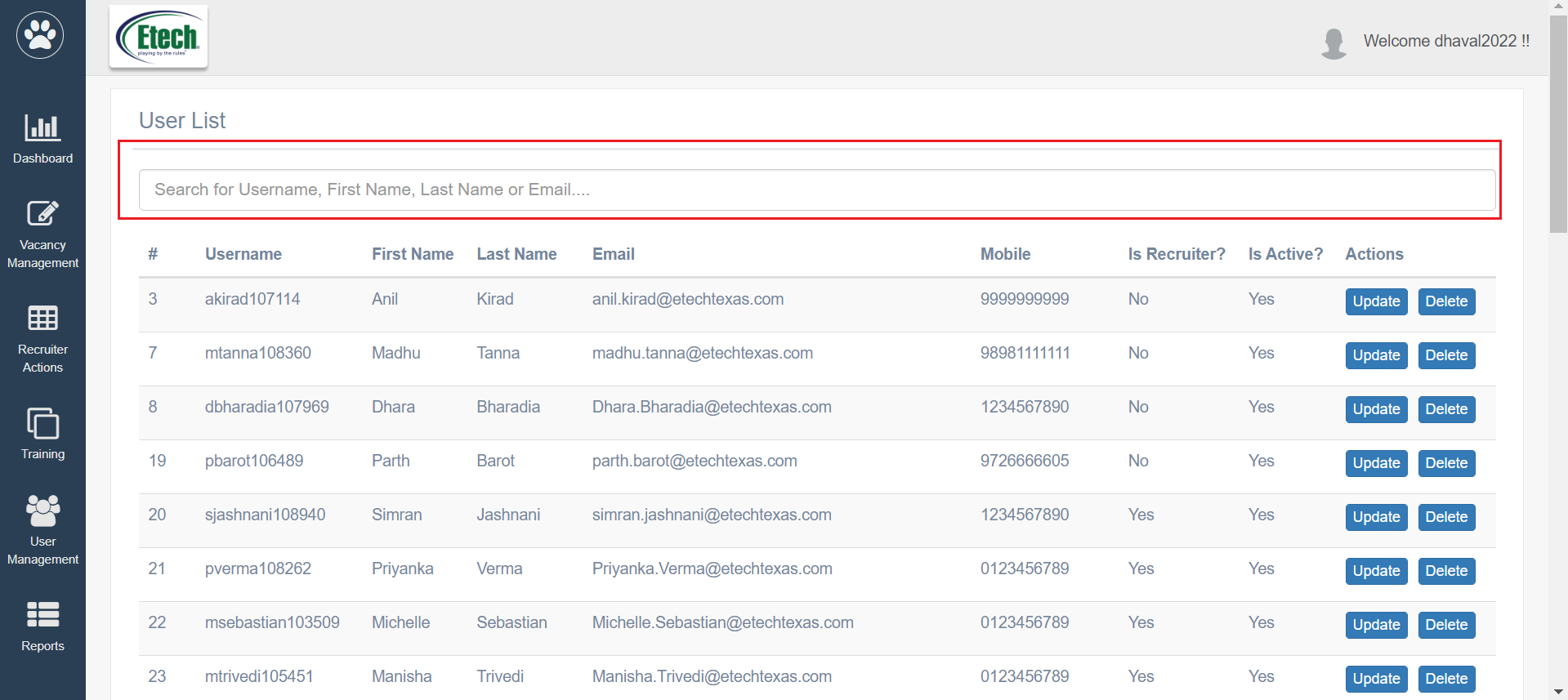
To search for any specific users, enter the keywords in the Search bar.
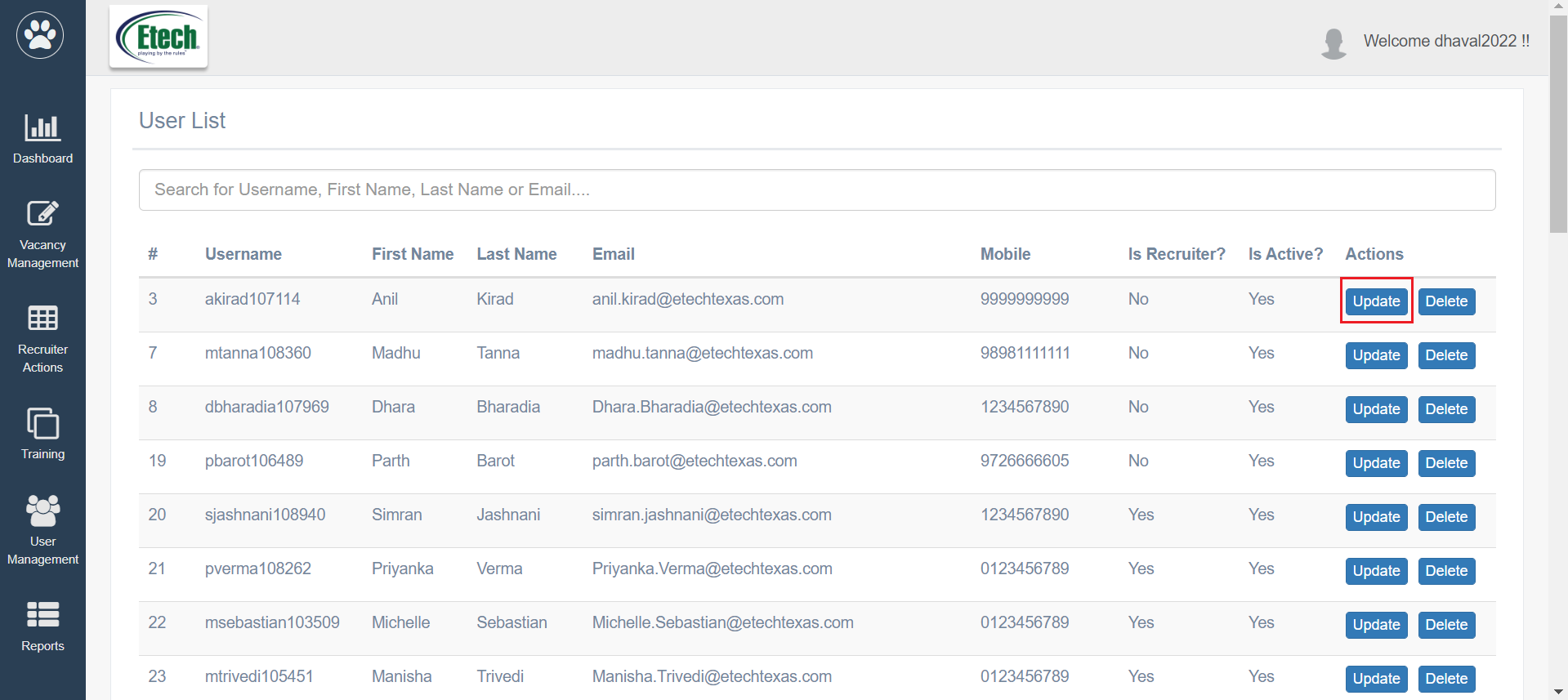
User’s details can be updated or even the role or locations assigned to them can be changed by the authorized users from this page.
Search the required user and click on Update from the Actions column.
The user will be redirected to the User Management page as shown below:
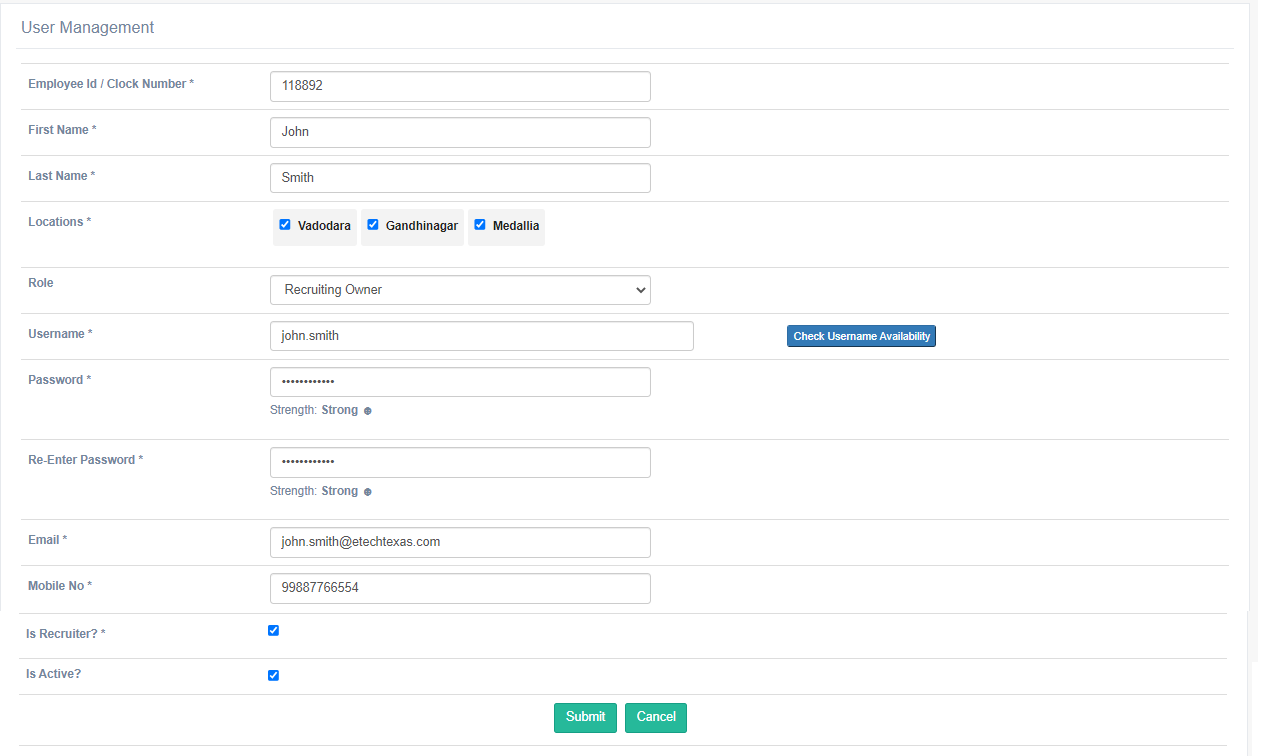
On this page, all details related to this user will be displayed. Update the necessary details and click Submit.
An authorized user can delete any user from the Users List page. To do so, click on the Delete button from the Actions column.
The confirmation window appears. Click OK to delete the user or click Cancel.
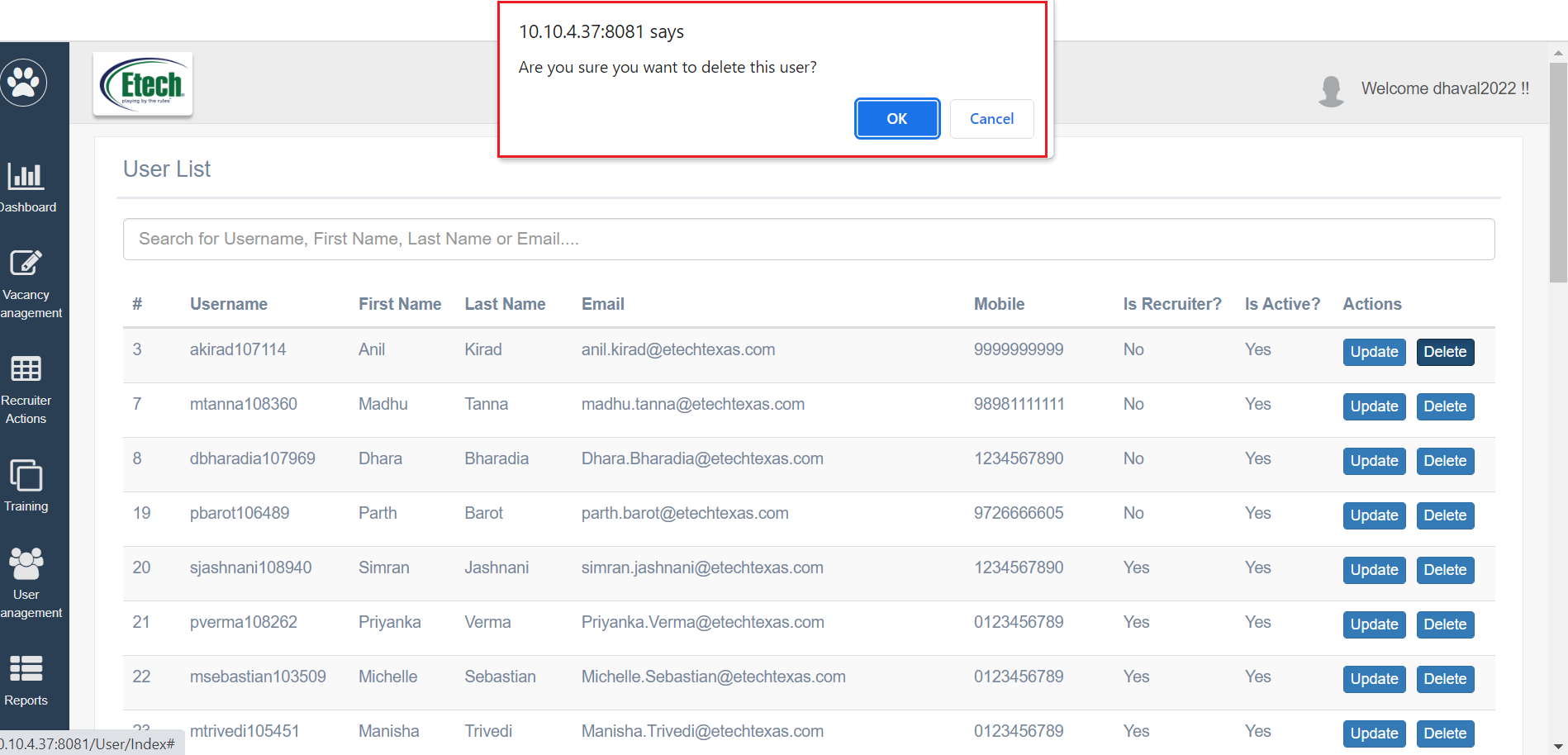
Note: The system does not actually delete the user, but marks it as inactive. “Is Active?” field displays “No” for the deleted users. This user will not be able to login into the system.