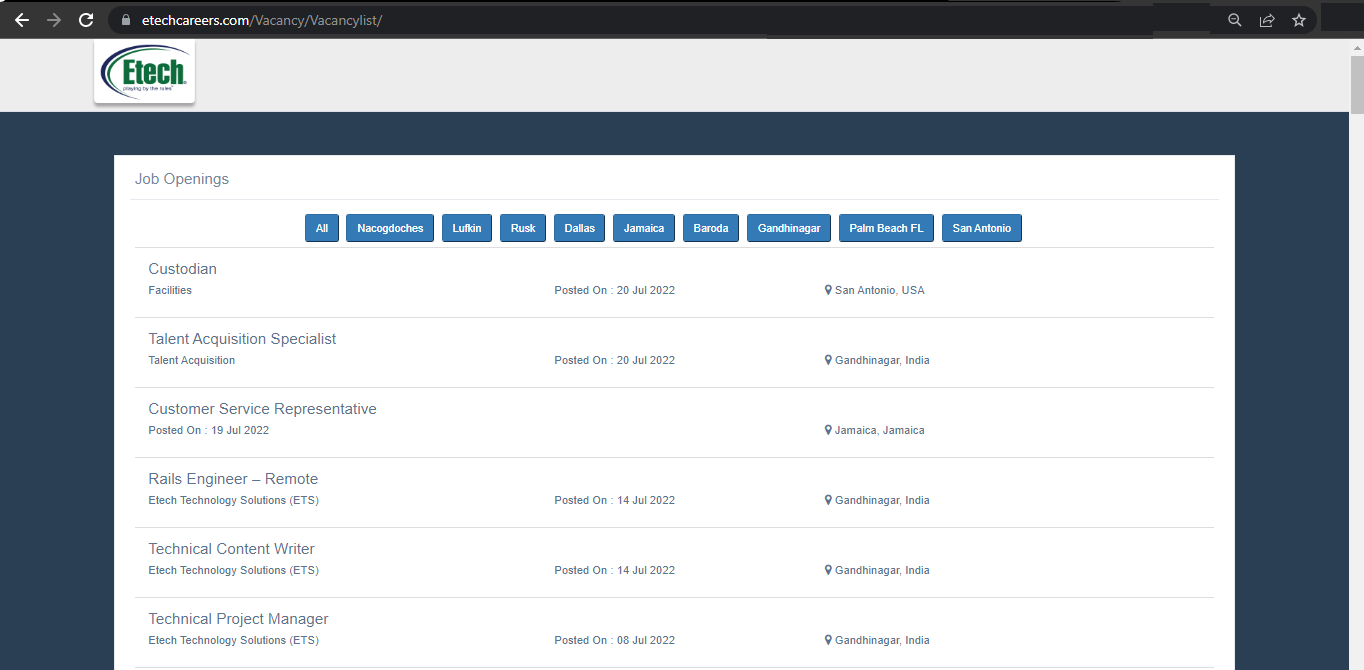
Users with Vacancy Management access can add, view, update or delete different vacancies as per the requirement.
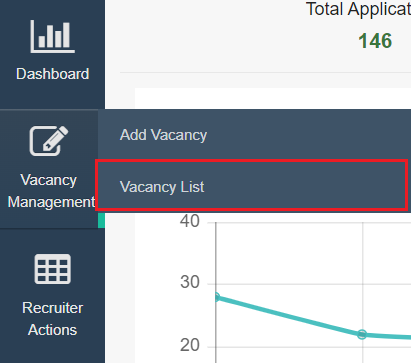
Click on the Vacancy Management button.
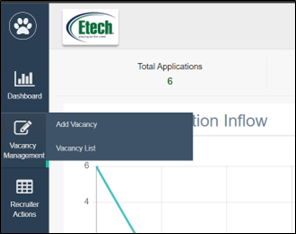
Under Vacancy Management, there are 2 tabs:
- Add Vacancy
- Vacancy List
Let’s first understand how to add a vacancy for any role.
ADD VACANCY
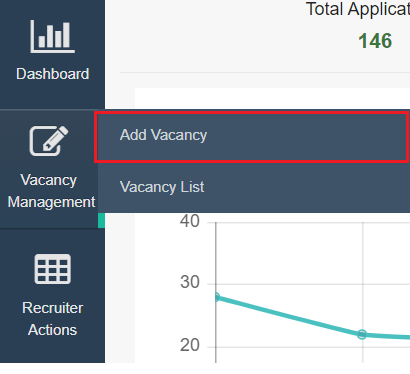
To add a new vacancy, click on Vacancy Management > Add Vacancy.
Add Vacancy page appears as shown below:
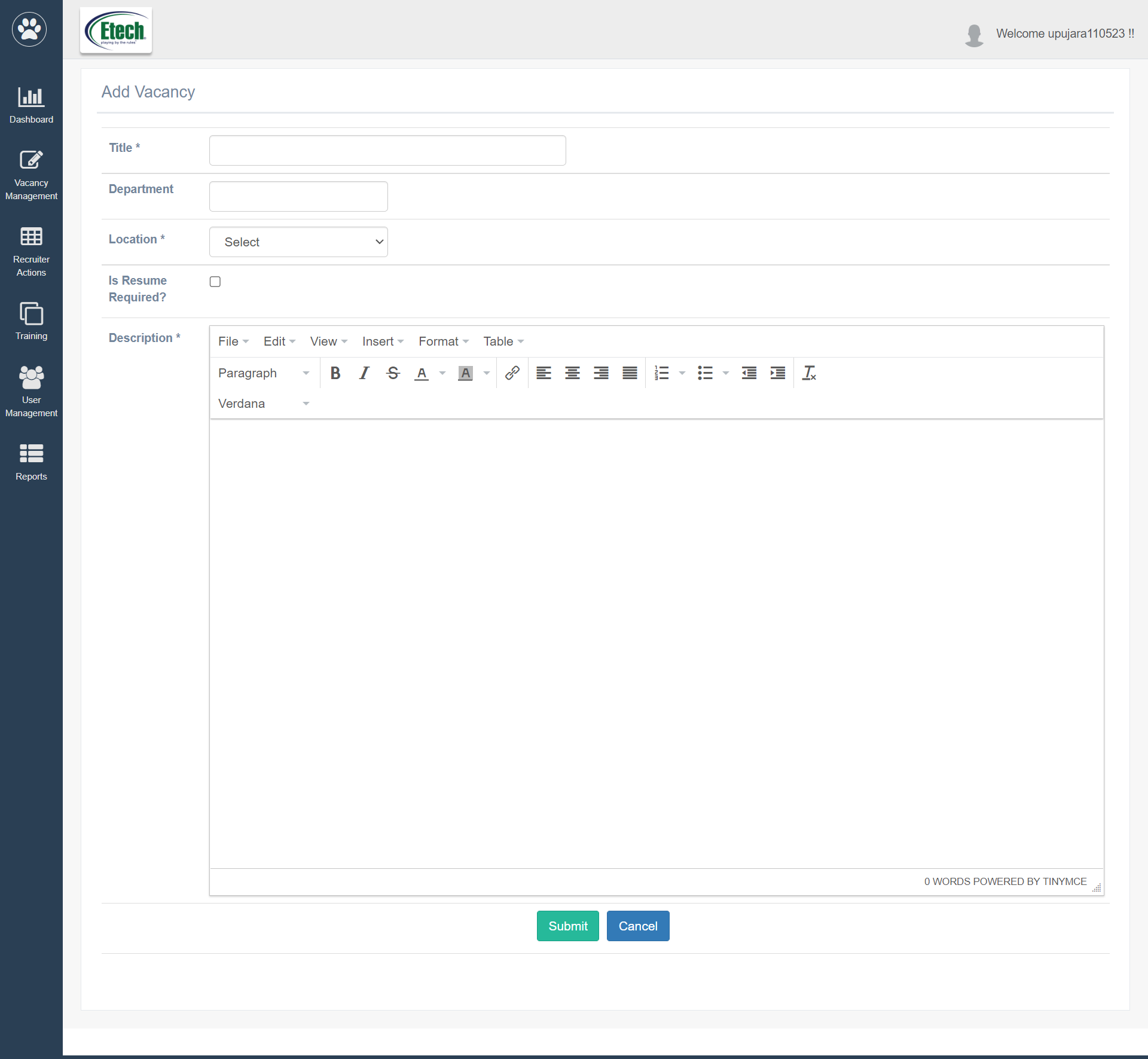
Note: The fields having the * symbol depicts that they are mandatory fields for a recruiter to configure.
Configure the following details to add a new vacancy:
- Title*: Enter a title name.
- Department: Enter the department name.
- Location*: Select the location from the drop down list.
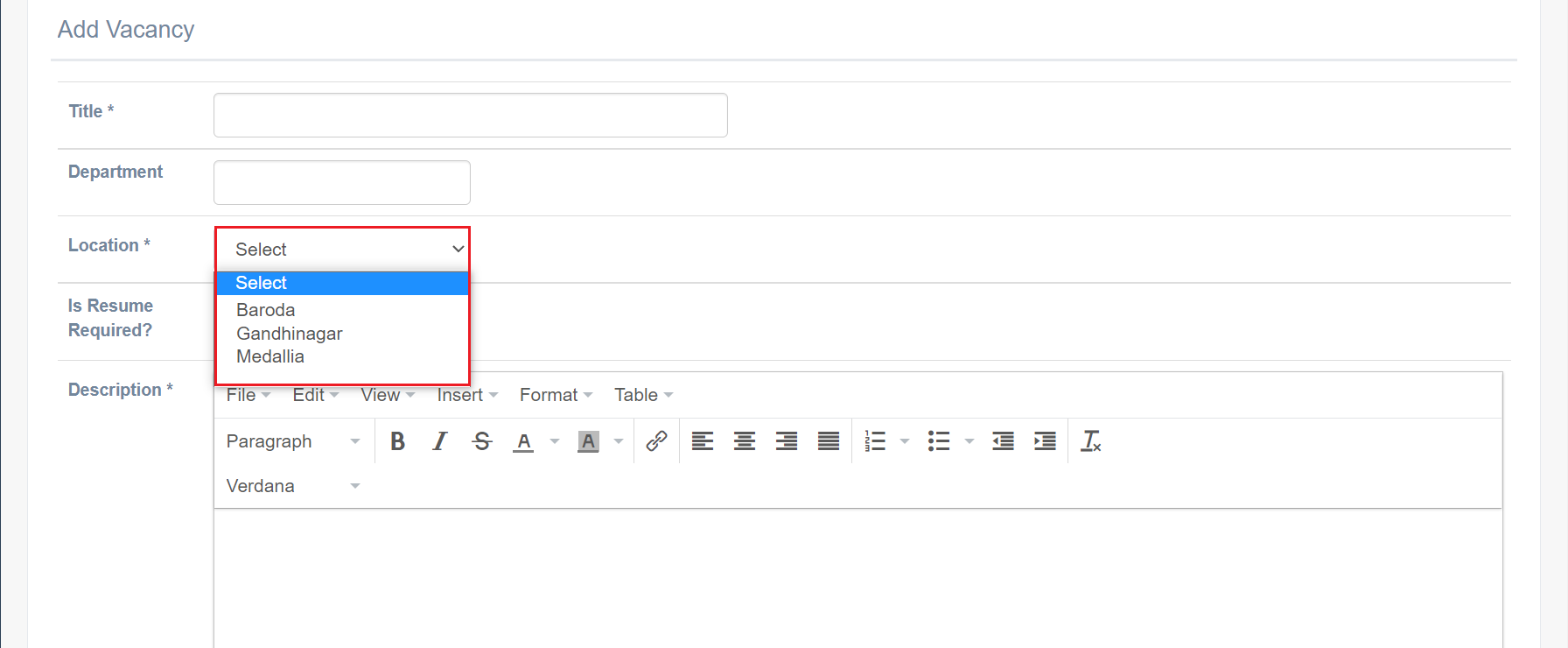
Note: Location dropdown will display only those locations for which access is granted to the logged-in recruiter.
- Is Resume Required? : Select this checkbox if the applicants are required to attach their resumes for this vacancy.
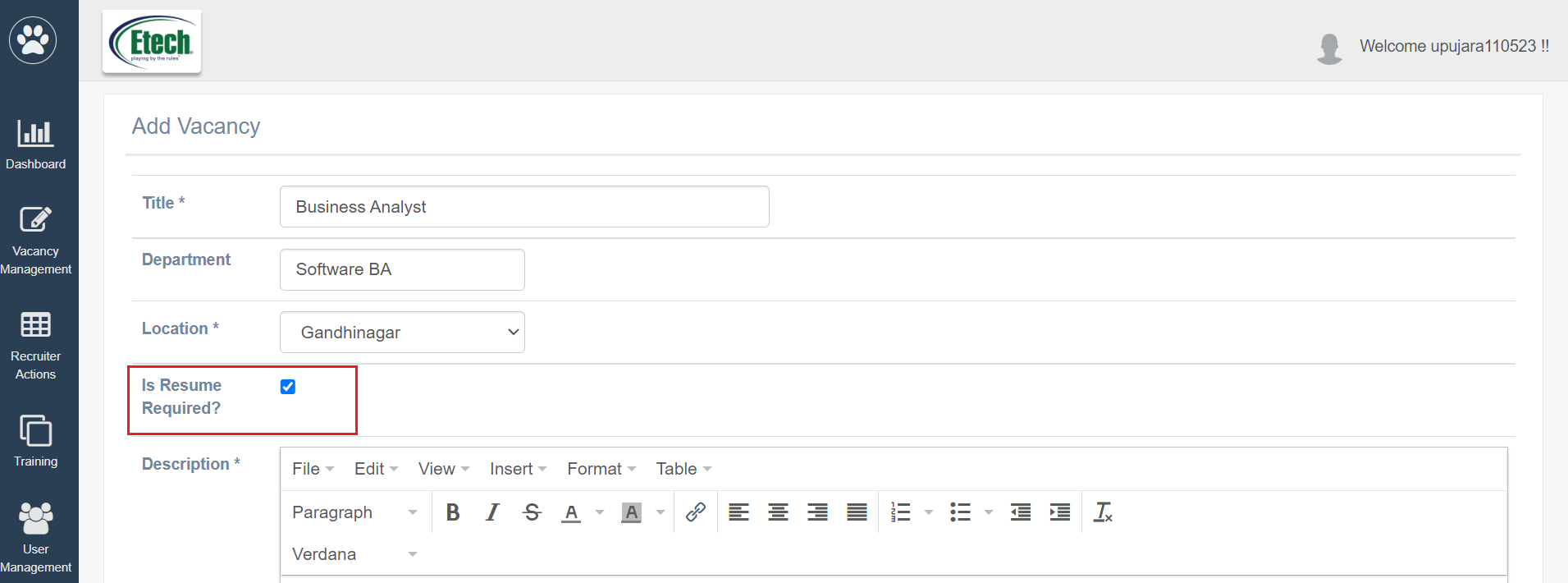
- Description*: Enter the job description for the vacancy.
Once all the above details are entered, click on the Submit button.

To discard the changes, click Cancel.
After submitting the above-configured Vacancy, it will be visible on the Vacancy Management > Vacancy List.
Notes:
- All the vacancies for open positions are listed on the Careers page of the EtechGS website. Whenever a new job is posted on the EtechGS website for any location, that newly created job will be created on ATS Vacancy List as well.
- The details of the candidate who is submitting the application for a particular vacancy from the Quick Application Form of EtechGS, will be displayed on the Candidate List page on ATS.
VACANCY LIST
The vacancy list displays all the vacancies posted till date.
To access this page, select Vacancy Management > Vacancy List.
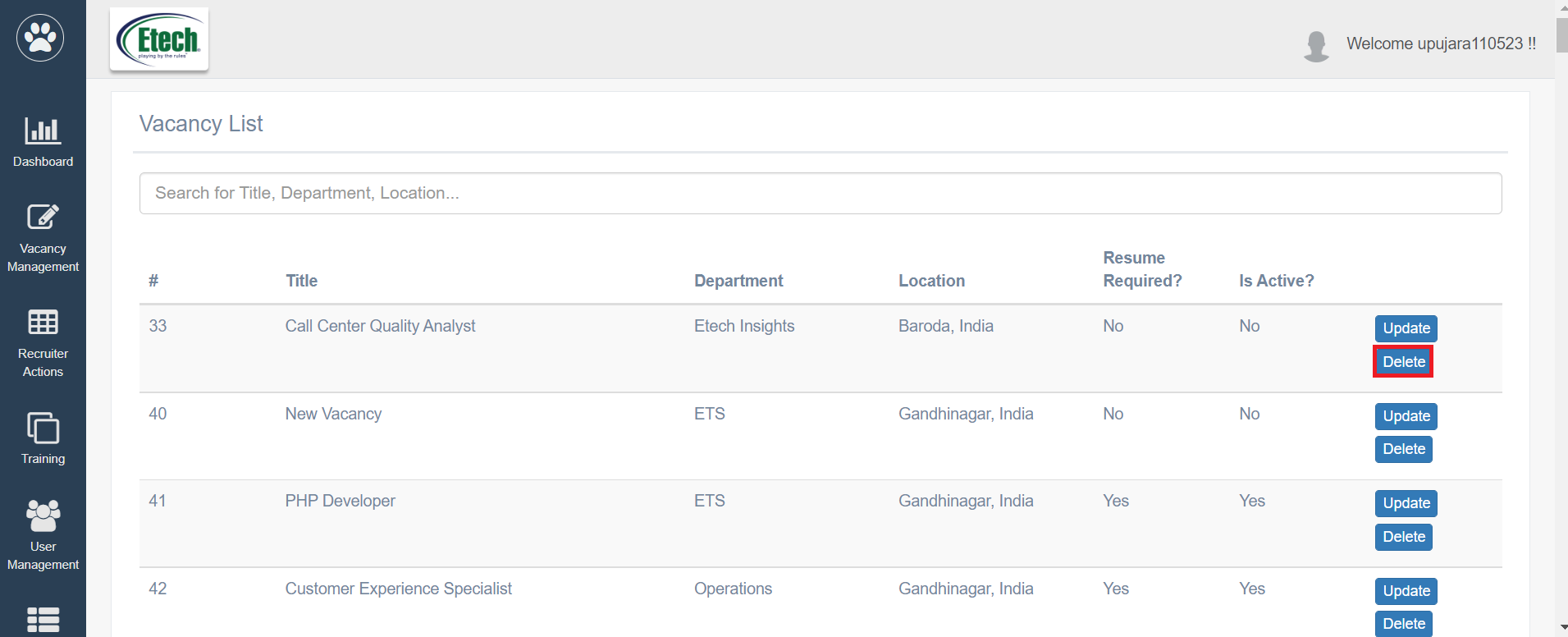
The Vacancy List page appears as shown below:
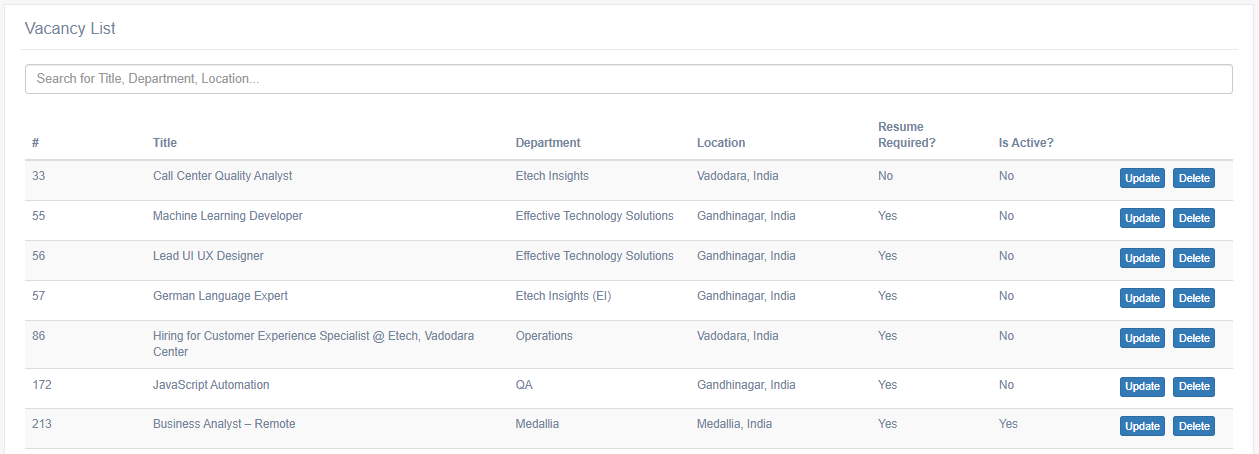
You can search for the desired vacancy by entering the keywords of details of the vacancy like title, department, location, etc. in the Search bar highlighted on the following screen.
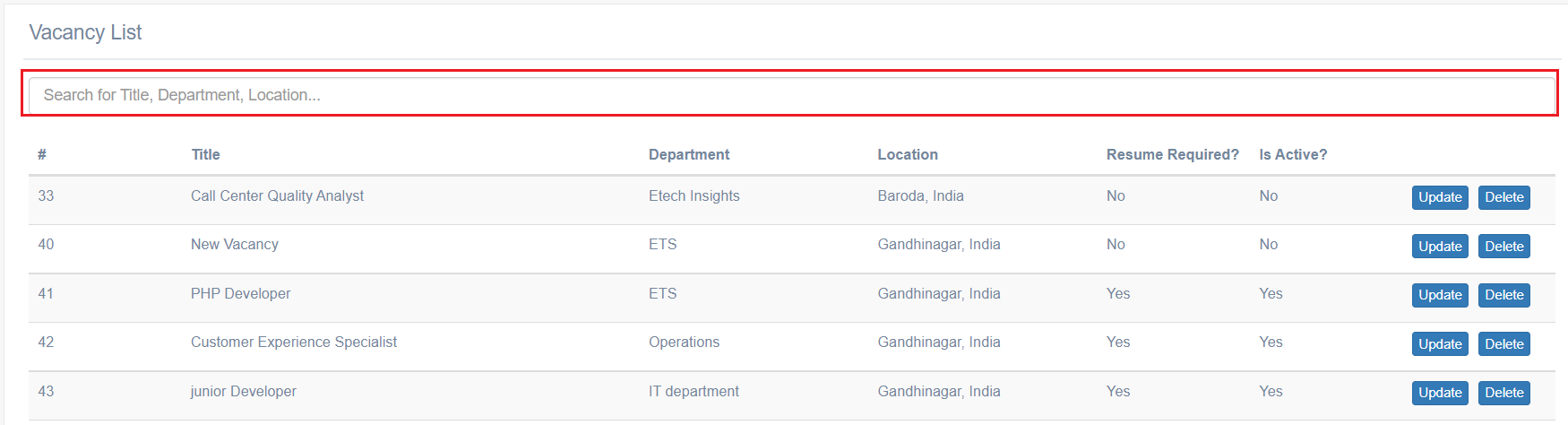
The Vacancy list displays basic details of the vacancy – Title, Department, Location, Resume Required?, and Is Active?.
Note: If the vacancy is Active, it means this vacancy is open and accepting applications from the applicants.
An authorized user can update and delete the desired vacancies from the list.
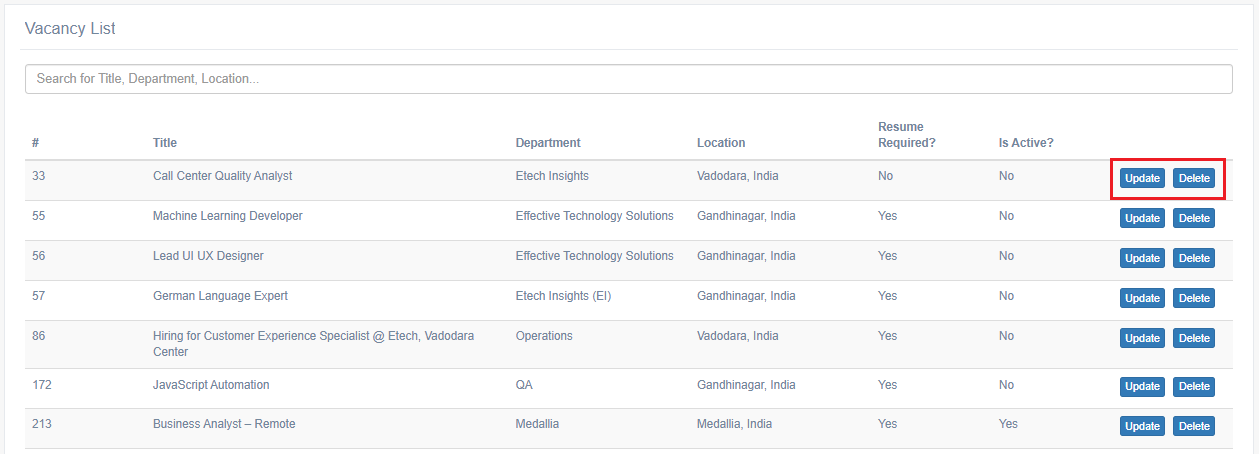
UPDATE
To update any vacancy, click on the Update button.
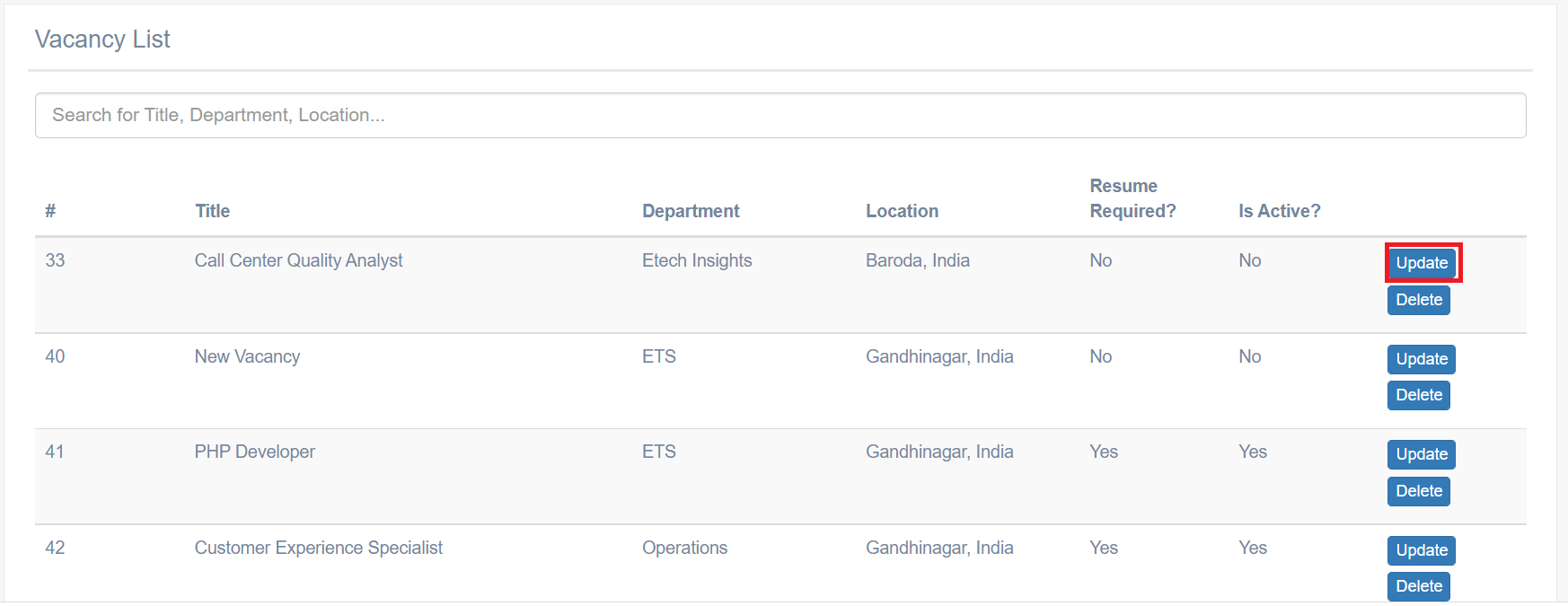
The Add Vacancy page will appear as shown below.
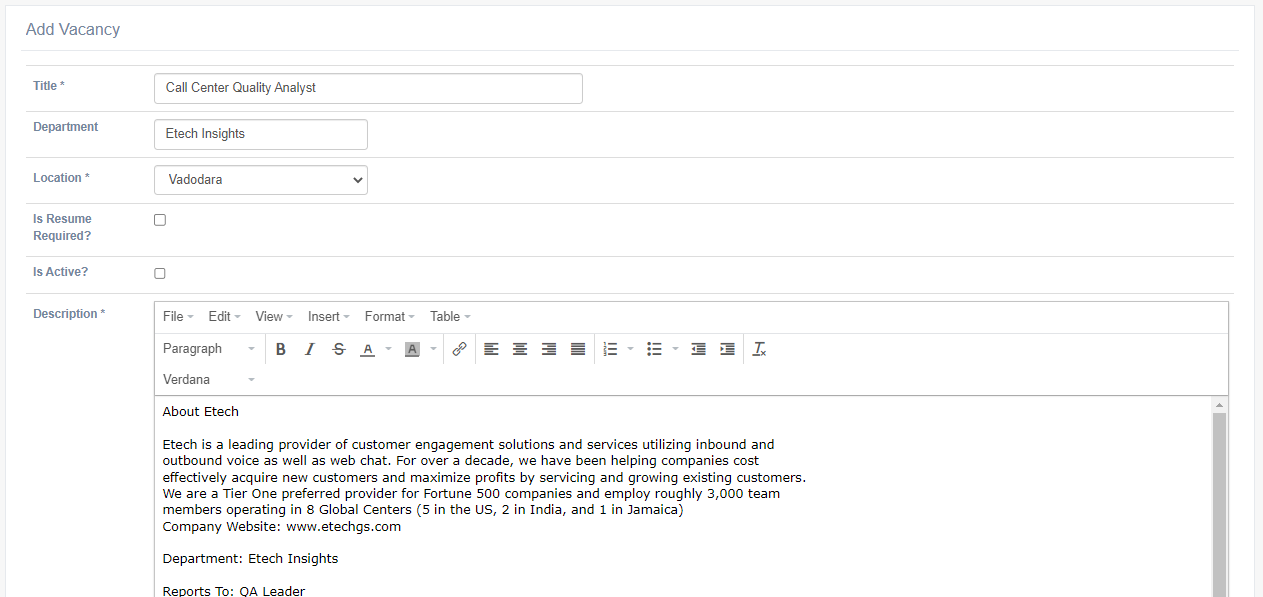
From this page, you can update the details of the desired vacancy again and click Submit. To discard the changes, click Cancel.
Updates done here are reflected on the EtechGS website i.e. https://www.etechgs.com/ as well.
DELETE
To delete any vacancy, click Delete.
Click OK to confirm the vacancy deletion or else click Cancel.
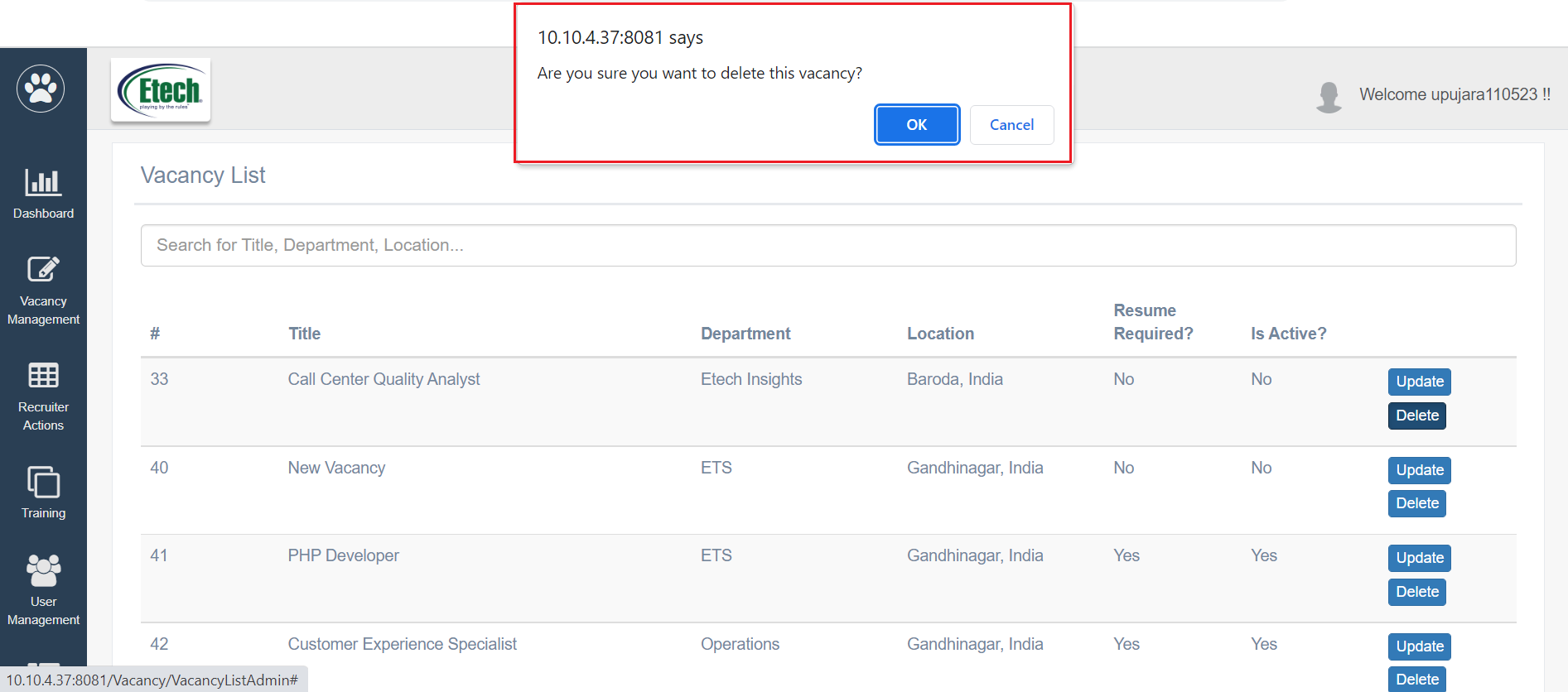
Once deleted, that vacancy will no longer be available on the EtechGS website i.e https://www.etechgs.com/ for accepting further applications.
Note: To verify the details of the posted vacancy, select http://www.etechcareers.com/Vacancy/Vacancylist/