Candidate List allows users to view the data of the applicants, Prescreen the applicants, conduct the Tests, schedule the Interviews and conduct the Pre-Hire process.
Users can also upload necessary documents or proof related to the applicants through this page.
NOTE: Details of the candidate’s application can be updated when the application is in these stages of the recruitment process – Prescreen, Test, Interview, Pre-hire, and New Hire. Once the applicant is moved to ERRIS, recruiters will not be allowed to update any information.
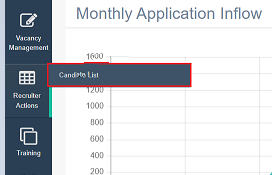
Click on the Candidate List.
On the Candidate List page, the list will display all the candidates’ details:
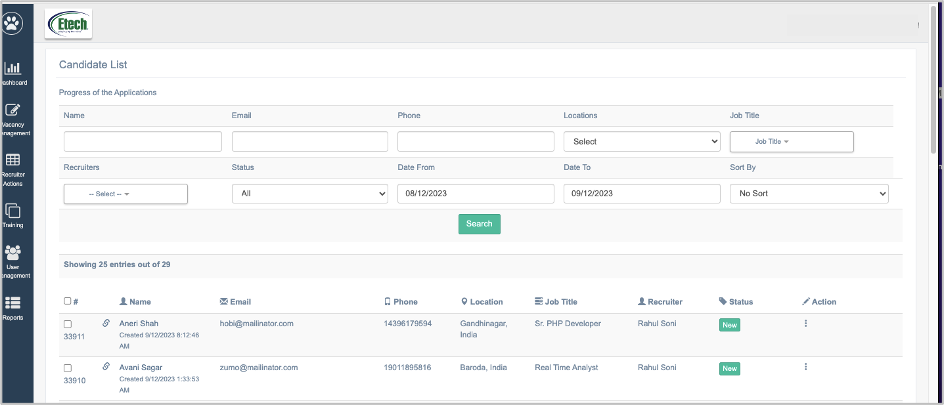
You can search for a specific set of candidates’ information by entering the following details:
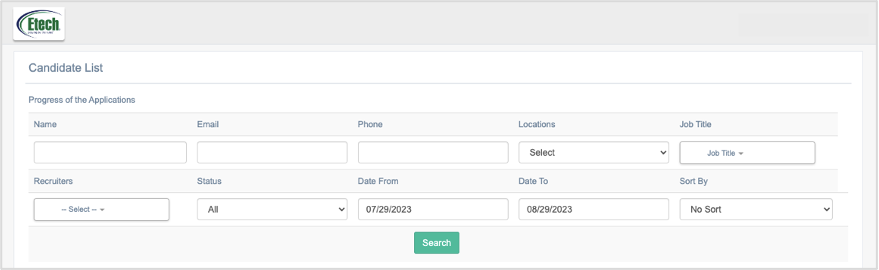
- Name: Enter the name of the candidate to search for their information.
- Email: Enter the email address of the candidate to search for their information.
- Phone: Enter the phone number of the candidate to search for their information.
- Locations: Select the job location.
- Job Title: Select the job title.
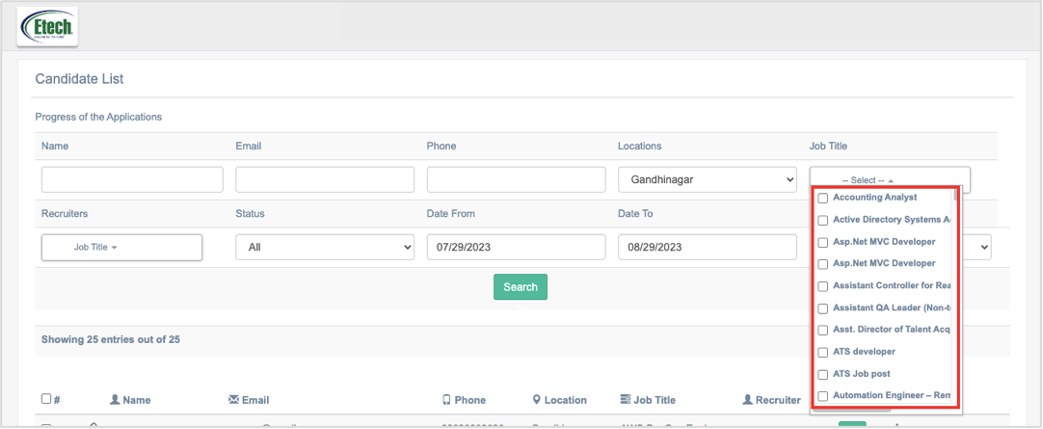
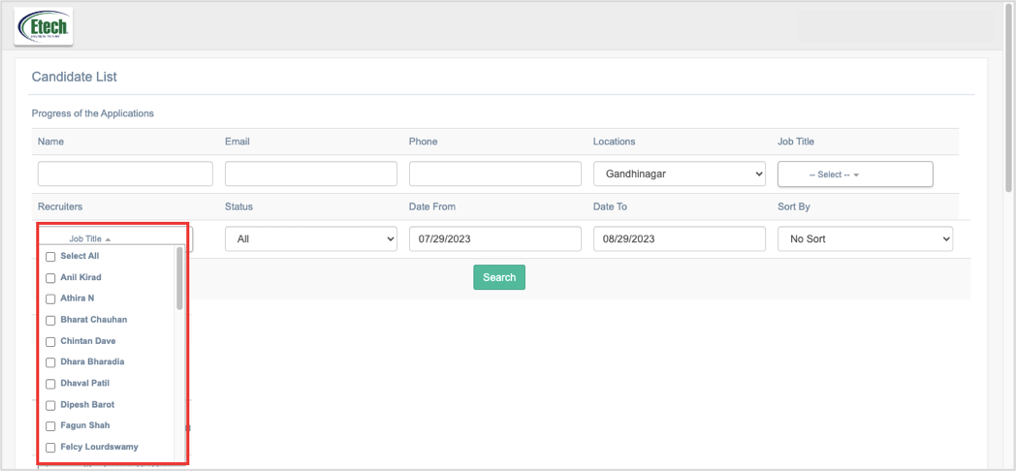
- Recruiters: Select the name of the recruiter to search the application processed by the selected recruiter. Users can select multiple names of recruiters to search for the specific set of employees.
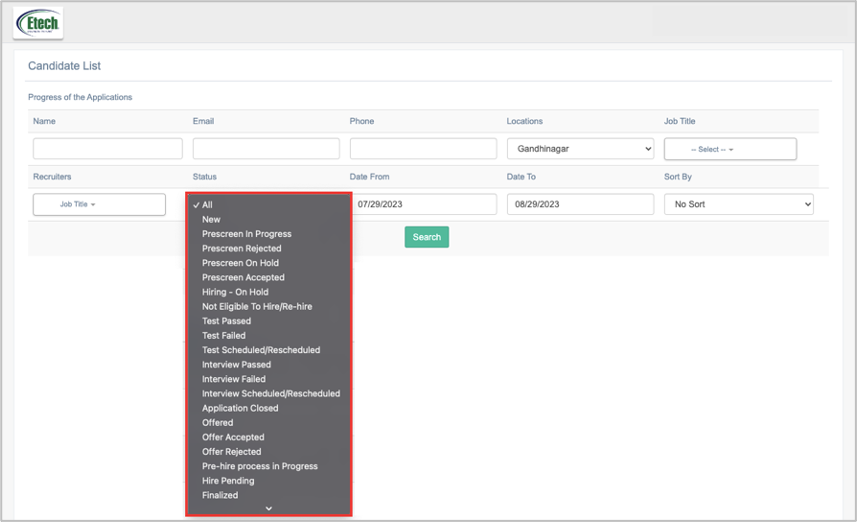
- Status: Select the status from the drop-down list.
- Date From – Date To: Select the date range to view the list of specific candidates applied during the selected period.
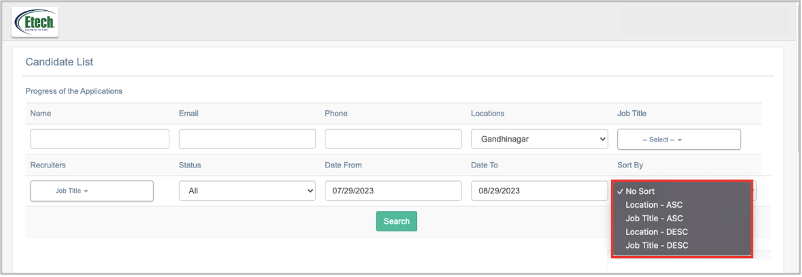
- Sort By: Select the method to sort the candidate’s list – Ascending or Descending.
Once all the filters are set, click on the Search button.
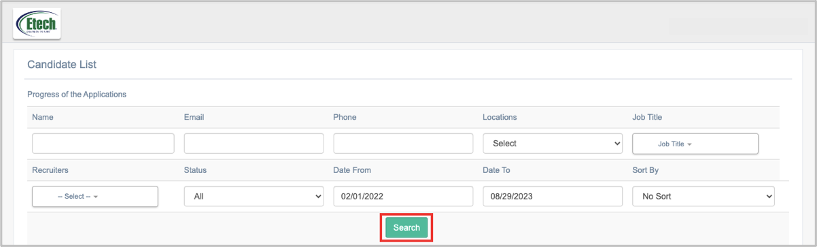
The required candidate will be displayed below on the candidate list.
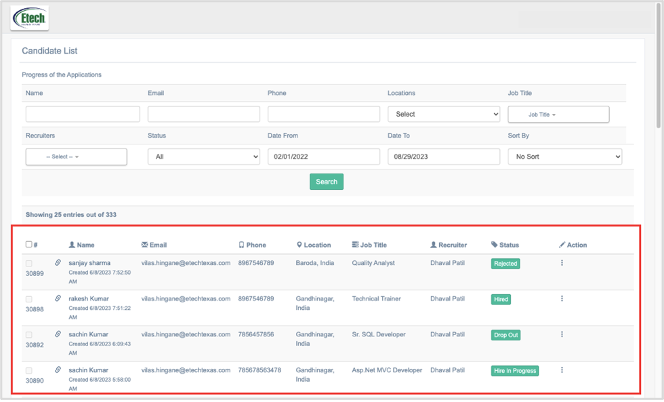
On this grid, following information will be displayed:
- Application ID: Displays the unique ID of the application received for a position.
- Link: To download the Candidate’s resume (if attached)
- Name: Displays the name of the candidate
- Email: Displays the email address of the candidate
- Phone: Displays the phone number of the candidate
- Location: Displays the location of the Job for which the Candidate applied.
- Job Title: Displays the name of the job position for which the Candidate applied.
- Recruiters: Displays the name of the recruiter, who conducted the recruitment process of the specific candidate’s application.
- Status: Displays the status of the recruitment process of the Candidate
- Action: Allows the recruiter to perform different recruitment processes for each candidate. Click on ellipsis icon to view the different action options.
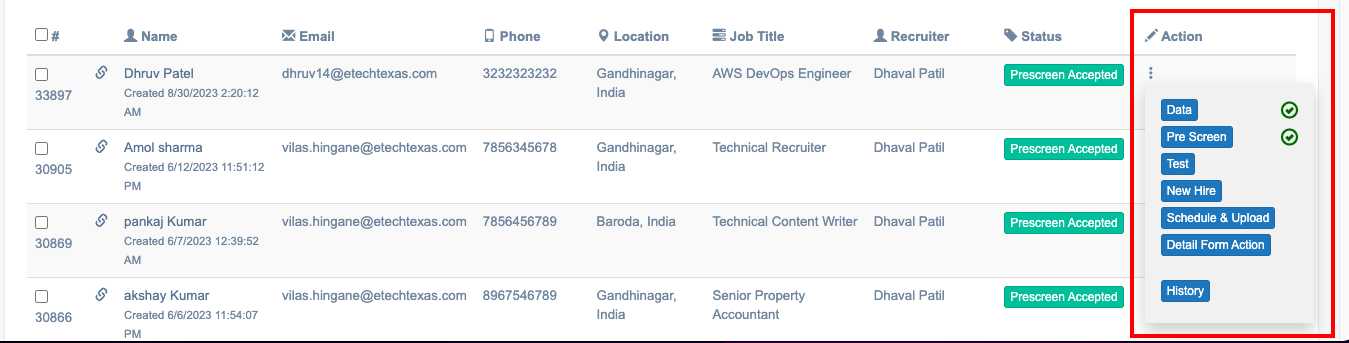
Different tabs will be displayed like –
- Data
- Prescreen
- Test
- New Hire
- Details From Action
- History
On this list, click on the  icon to download and view the applicant’s resume attached with the application.
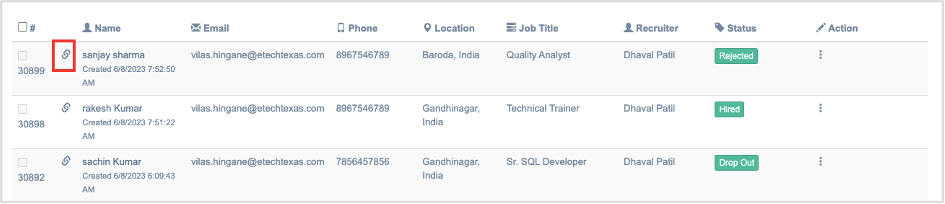
Note: The Link will be displayed only if the Candidate has attached his/her resume while applying for the position.
The Status column displays the recruitment status of the candidate.

When a candidate’s application is posted on the ATS and the recruitment process has not been initiated, then the status of such candidates will be displayed as New.
Once the process is initiated, different statuses will be displayed for the candidate.
Let’s understand all the Actions of Recruitment performed by the recruiters for any candidate.