The recruiters can reject the candidates in ATS due to any reason such as – less experience, poor performance in tests/interviews, not meeting the salary expectations, etc.
The candidates can be rejected in any recruitment stage — Prescreen, Test, Interview, and Prehire. There are respective rejection statuses on each of these pages which can be set to reject one candidate.
When the recruiter rejects any candidate on the basis of their profile not matching the organization’s need in any of the hiring stages, immediately, the ATS system will send a rejection email to that particular candidate.
Let’s understand the rejection process in each stage.
PRESCREEN REJECTION
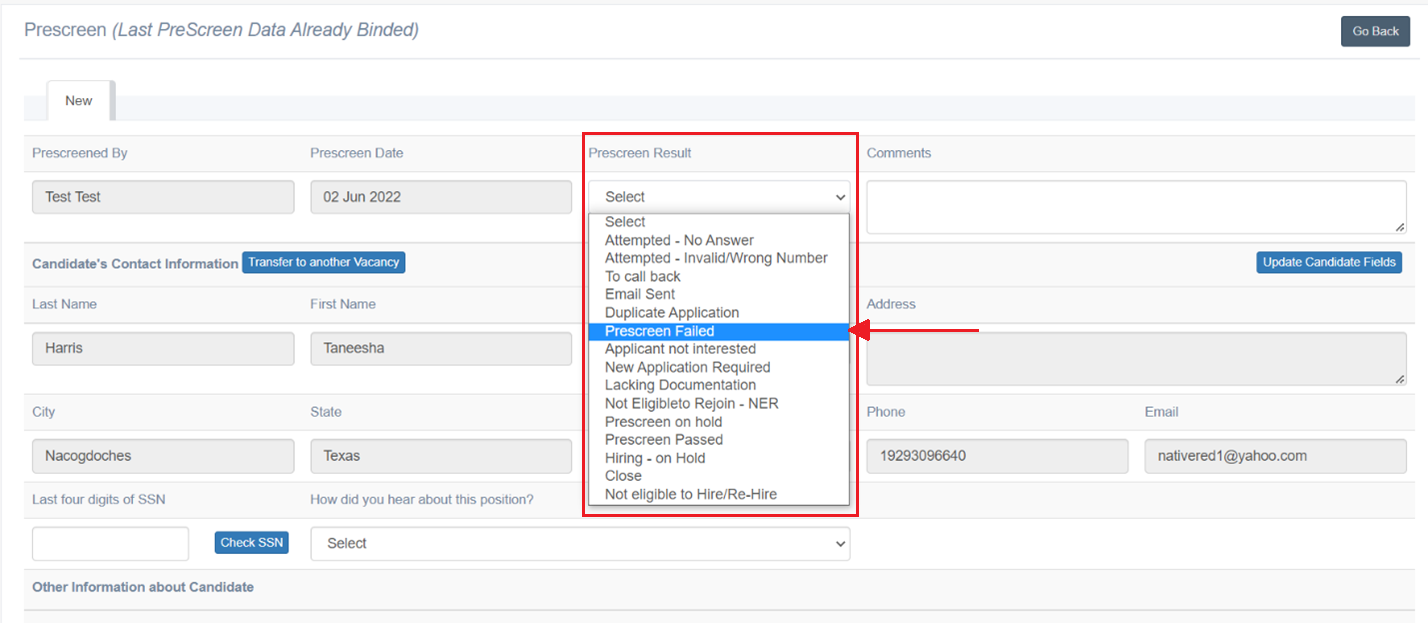
On the Prescreen page, to reject a candidate, the recruiter can select Prescreen Failed option from the Prescreen Result dropdown field for a candidate, then, once that prescreen form is submitted, a rejection email will be sent to that candidate by the system.
TEST REJECTION
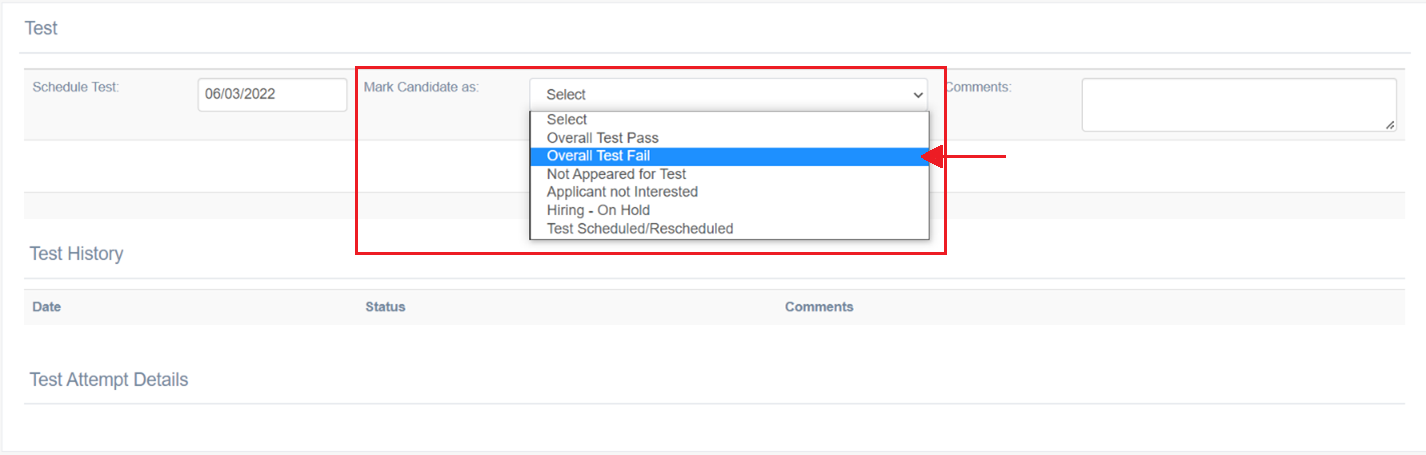
On the Test page, to reject a candidate, the recruiter can select the Overall Test Fail option from the Mark Candidate as dropdown field for a candidate, then, once that test result is submitted, a rejection email will be sent to that candidate by the system.
INTERVIEW REJECTION
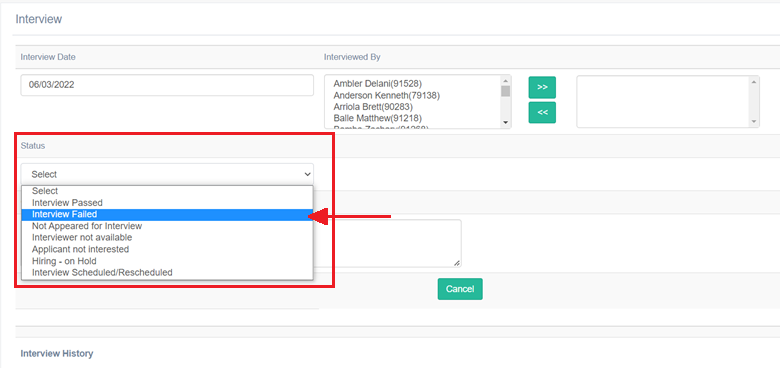
On the Interview page, to reject a candidate, the recruiter can select the Interview Failed option from the Status dropdown field for a candidate, then, once this result is submitted, a rejection email will be sent to that candidate by the system.
DRUG TEST FAILED
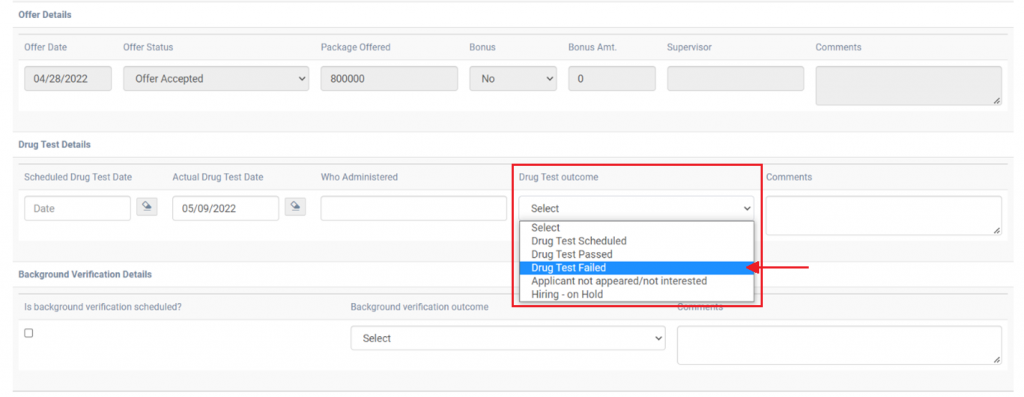
On the Prehire form, to reject a candidate, under Drug Test Details, the recruiter can select the Offer Test Failed option from the Drug Test Outcome dropdown field for a candidate, then, once this result is submitted, a rejection email will be sent to that candidate, by the system.
BACKGROUND VERIFICATION FAILED
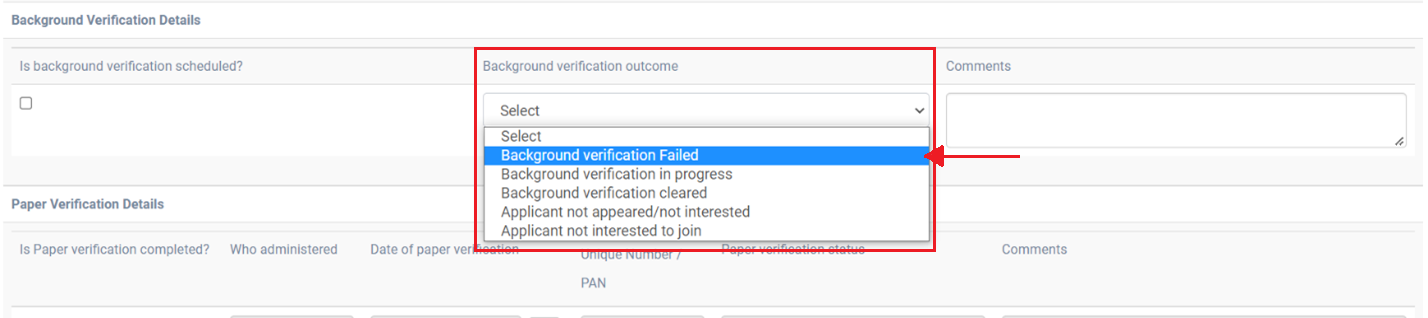
On the Prehire form, to reject a candidate, under Background Verification Details, the recruiter can select the Background Verification Failed option from the Background Verification Outcome dropdown field for a candidate, then, once this result is submitted, a rejection email will be sent to that candidate, by the system.
PAPER VERIFICATION FAILED
On the Prehire form, to reject a candidate, under Paper Verification Details, the recruiter can select the Paper Verification Failed option from the Paper Verification Status dropdown field for a candidate, then, once this result is submitted, a rejection email should be sent to that candidate, by the system.

REJECTION MAIL
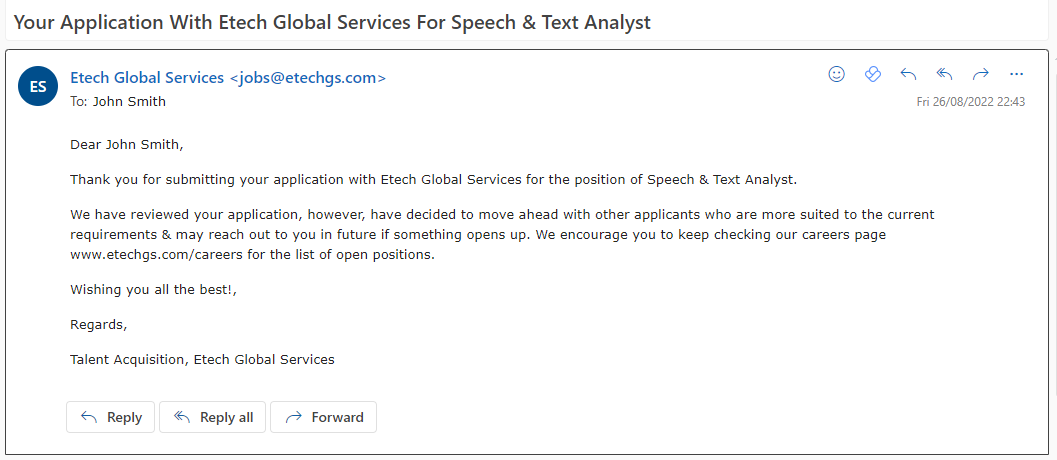
The rejection mail should be sent from the jobs@etechgs.com mail address.
For example, the rejection mail sent to the candidate named John Smith, who had applied for the Speech & Text Analyst position in India is shown below:
MULTIPLE CANDIDATE REJECTION
On the Candidate List page, the recruiter should be able to reject multiple candidates at a time. Once rejected, the rejection mail should be sent to the respective rejected candidates.
Checkboxes for multi-selection will be displayed against all the applications on the Candidate list grid as shown below:
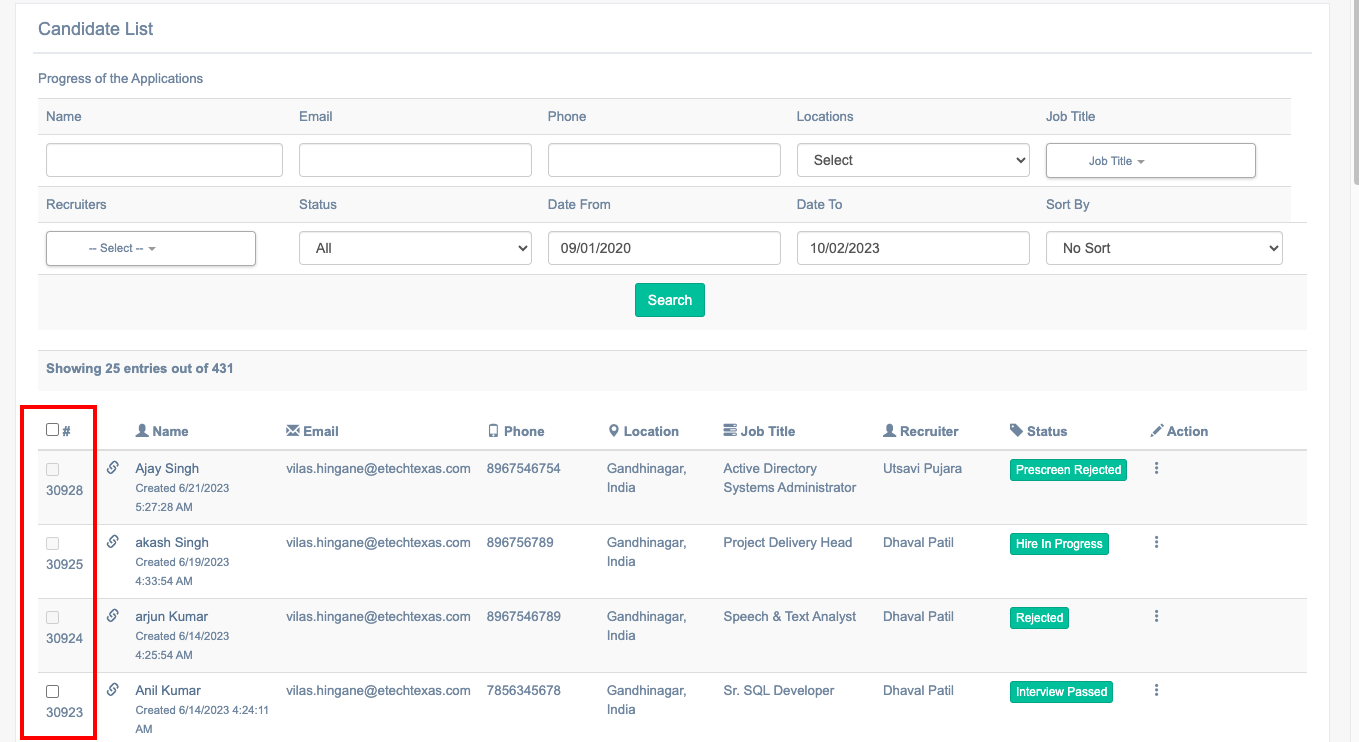
A select-all checkbox will also be displayed on the header section of the Candidate list grid. When this checkbox is selected, all the checkboxes against all the applications displayed in the grid will get selected.
Note: For the following statuses of any applications, the checkboxes should be in disabled mode, and recruiters will not be able to select such checkboxes:
- Prescreen Reject
- Test Failed
- Interview Failed
- Application Closed
- Hire In Progress
- Hired
- Finalized
- Drop Out
To reject applications from the candidate list grid, firstly, recruiters need to select the checkboxes against one or more applications.
When at least one checkbox is selected against any candidate, the Reject Applications button will be displayed in the top right corner as displayed in the following screen:
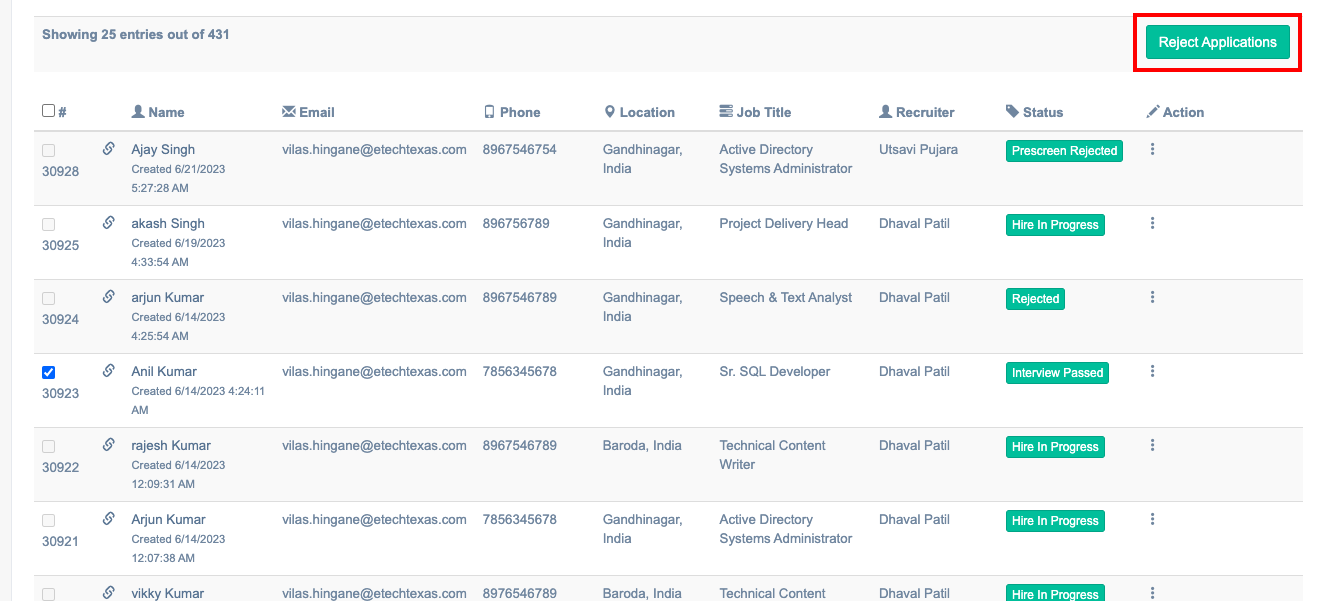
Note: By default, this button will not be displayed until a checkbox is selected.
When the recruiter clicks on the Reject Applications button, a confirmation pop-up should be displayed as shown below:
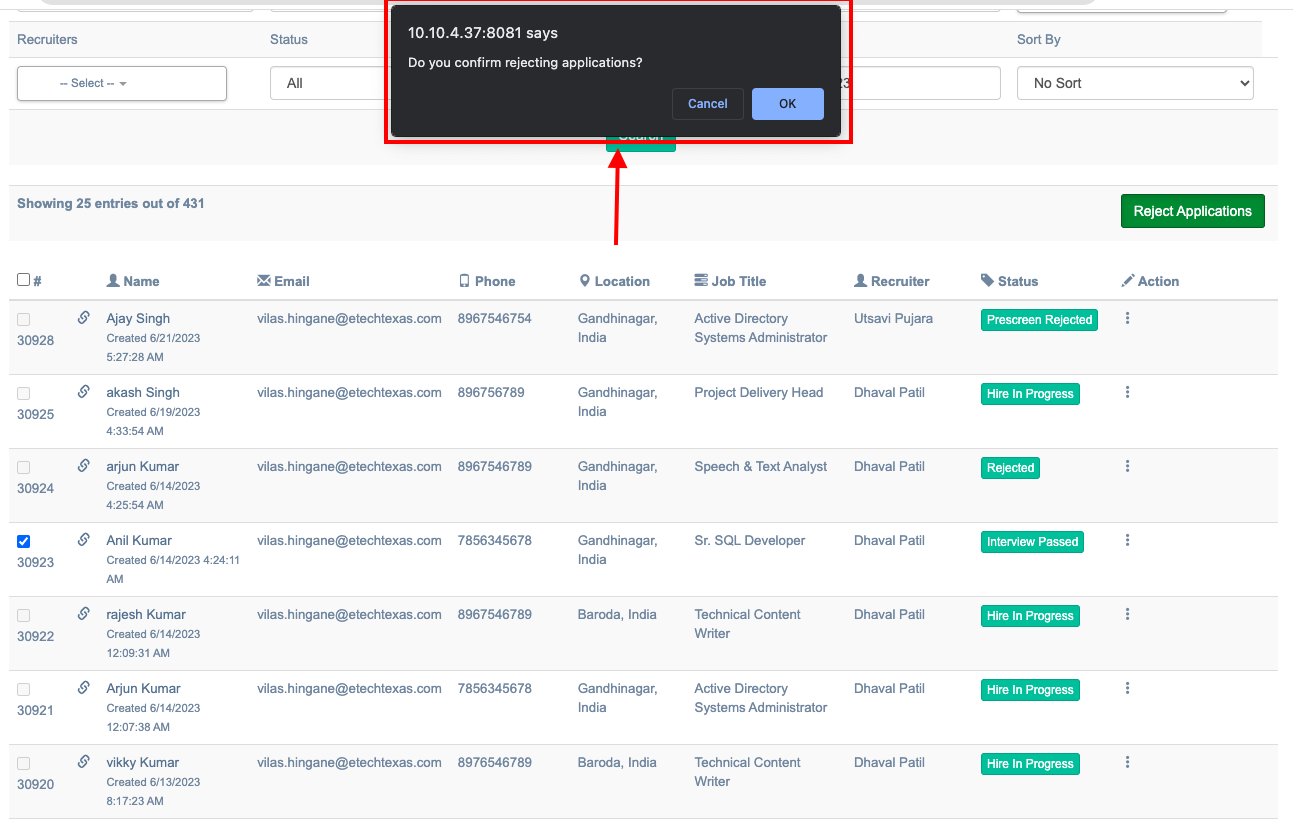
On clicking the OK button, all the selected application(s) must be rejected. At the same time, the rejection mail will also be sent, and the status of the rejected applications will be set as per their hiring stage.
For example,
- A candidate named, Susan Andrew, went through the prescreen process. As of now, the status of her application is Prescreen In Progress.
- Now, the recruiter selects the checkbox against Susan’s application to reject her and then clicks on the Reject Applications button.
- Once confirmed, the recruiter will reject Susan in the prescreening round.
- Susan will receive a rejection email, and the status of Susan’s application should be now set as Prescreen Rejected.
Similarly, if a candidate’s application has the status of Test Scheduled/ Rescheduled, then on the rejection, the status for that candidate will now be set as Test Failed.
To discard the selected applications for rejections, recruiters should be able to click on the Cancel button. Once clicked, the pop-up should be closed and all the checkboxes against the application on the candidate list grid will get in deselect mode.
Following are the statuses which will be displayed after the application is rejected at any hiring stage.
| Status Before Rejection | Status After Rejection |
|
Rejected |
|
Prescreen Rejected |
|
Test Rejected |
|
Interview Rejected |
|
Pre-hire Rejected |
|
Rejected as Hiring on Hold |